MatchHub help · Getting started
Sign in and accept an invitation
You do not need an account to read a draw or a ladder. You need one to manage a team or see your own record. Your club or team manager invites you.
Accept an invitation
- In the invitation email, select Accept invitation.
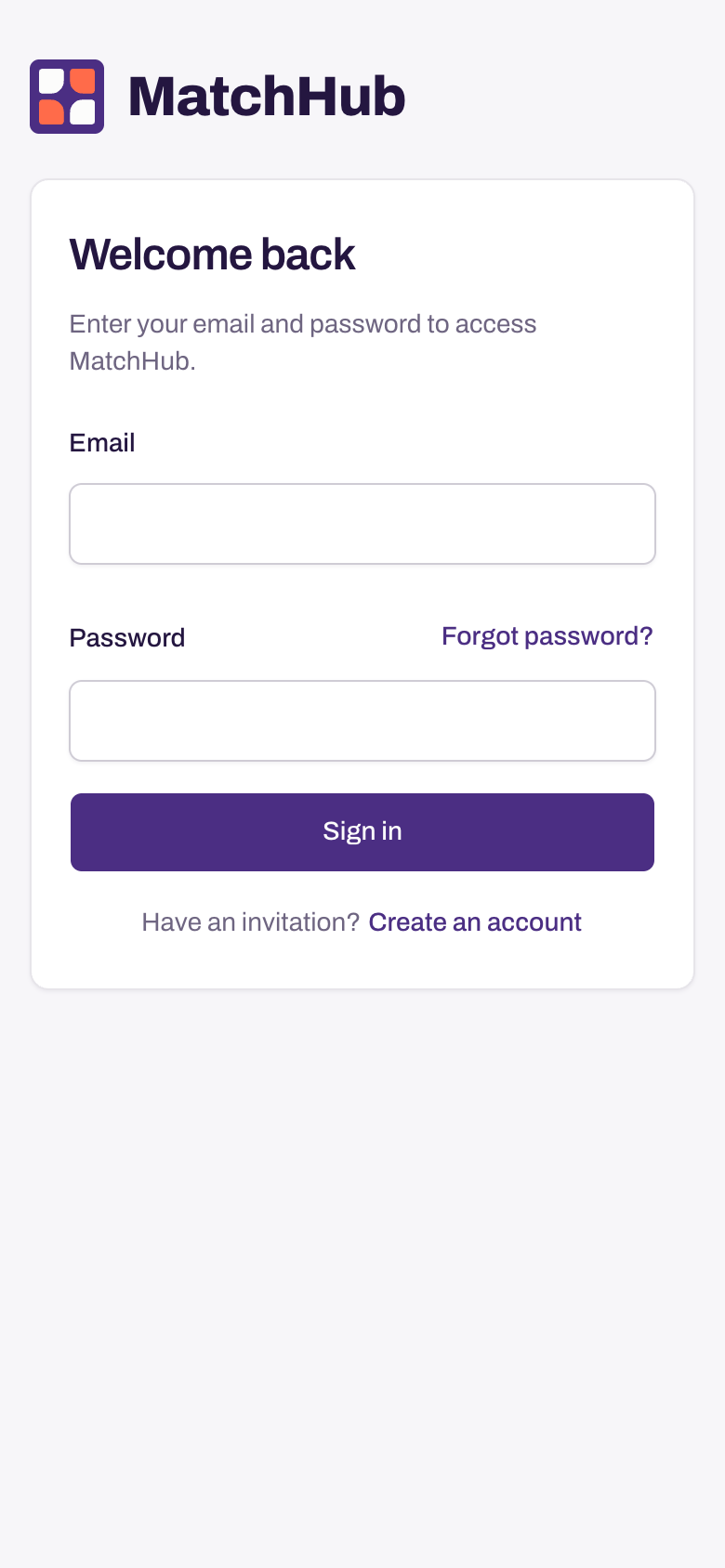
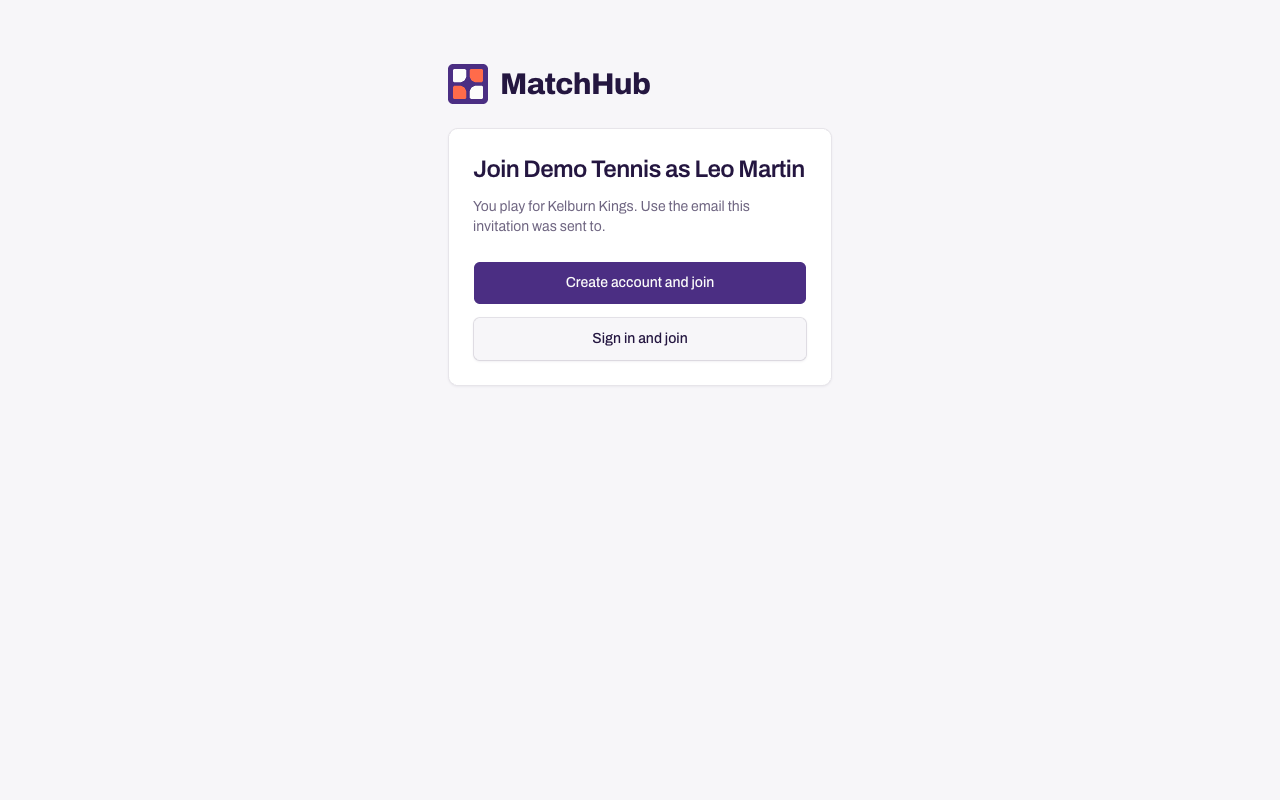
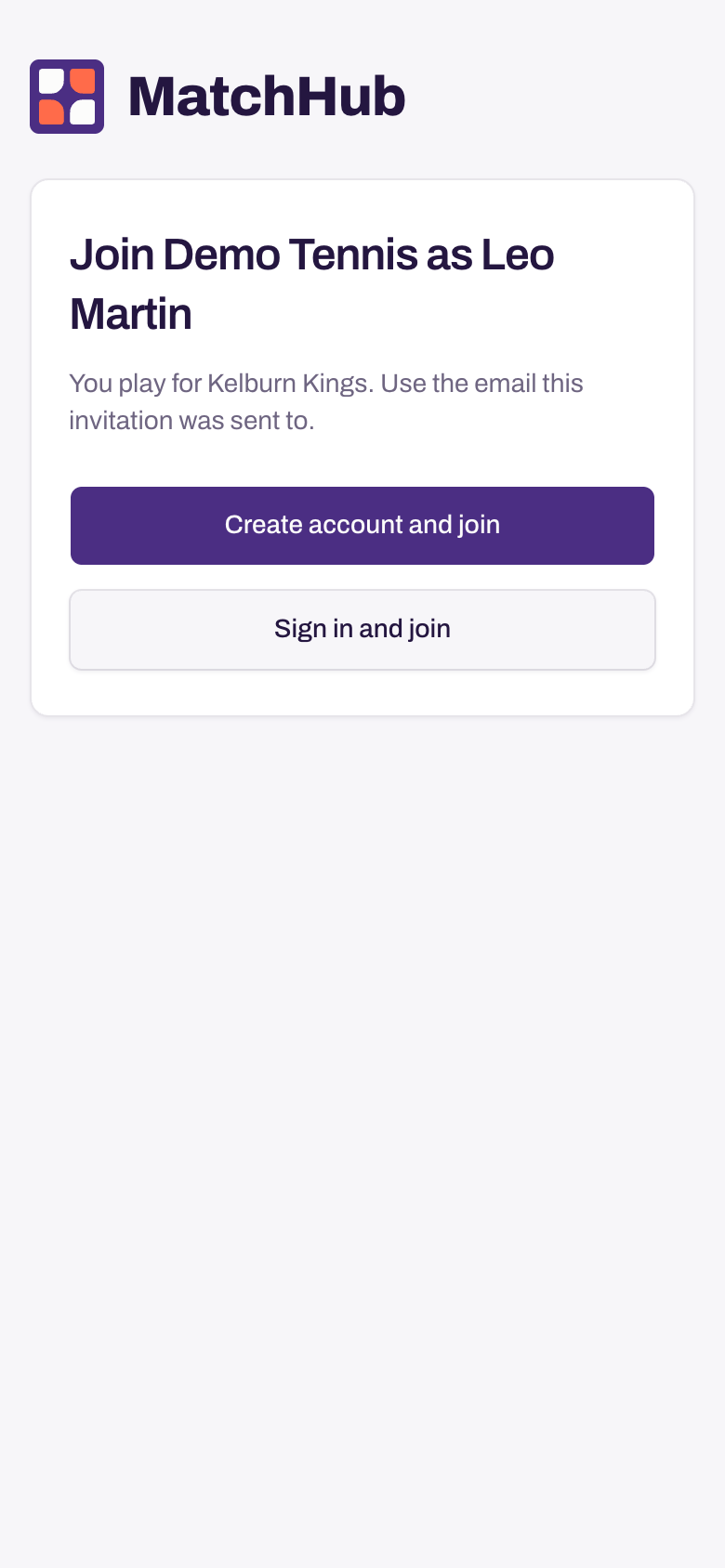
- Check the name and teams. Select Create account and join. If you already use MatchHub, select Sign in and join instead. Sign in with the email the invitation was sent to, then go to step 5.
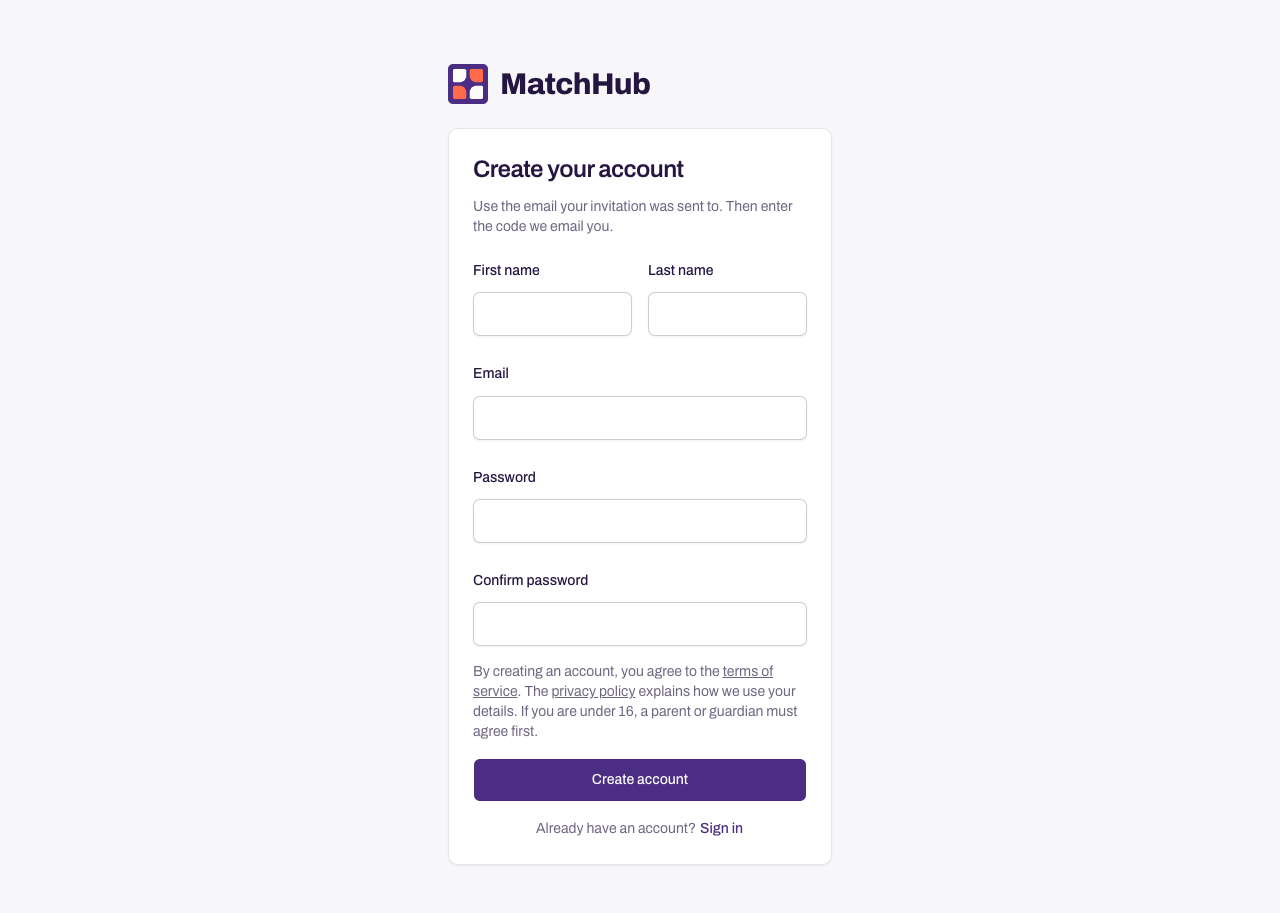
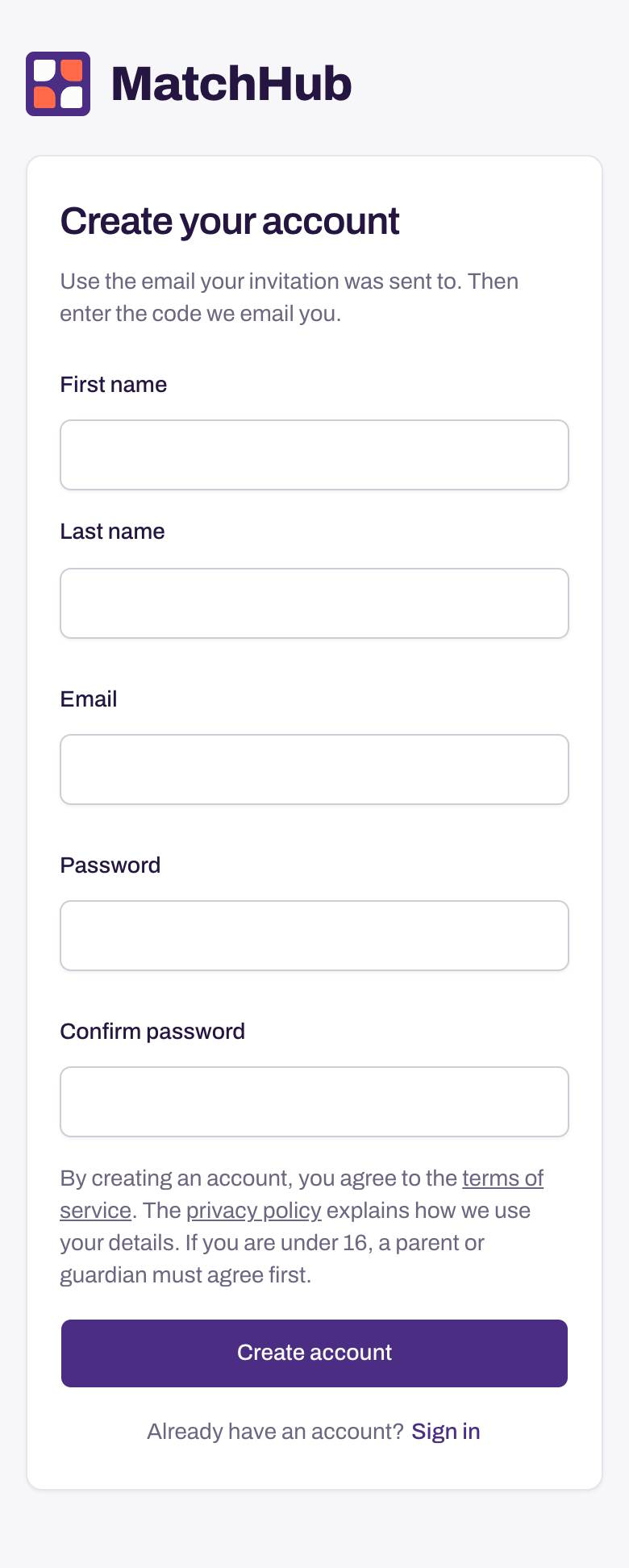
- Enter your name, the email address the invitation was sent to, and a password. Select Create account. This means that you agree to the terms of service. If you are under 16, a parent or guardian must agree first.
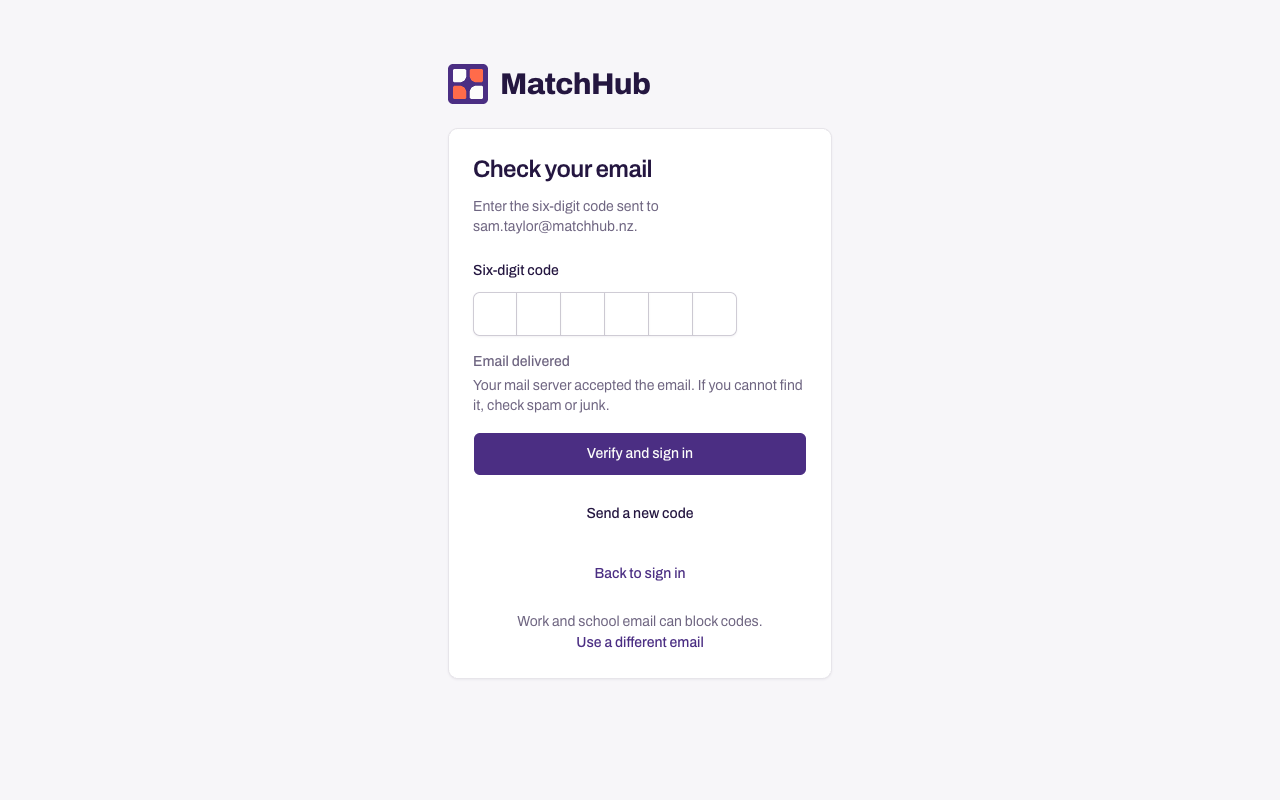
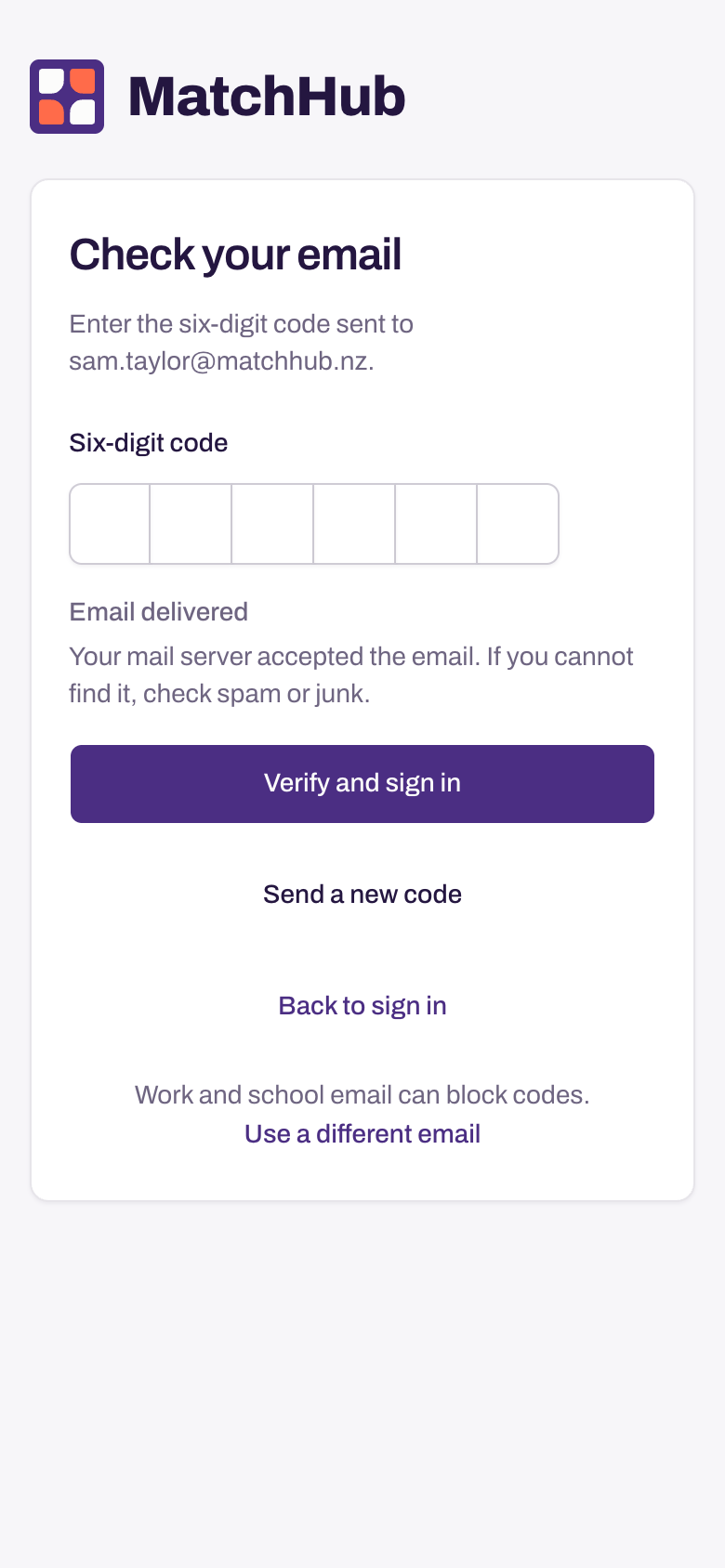
- Enter the six-digit code from your email. Select Verify and sign in. If you have more than one verification code email, use the newest one. Each new verification code replaces the one before.
The code step checks delivery for a new account. Email delivered means your mail server accepted it. Check spam or junk if it is missing. If delivery fails, check the address and select Send a new code. Ask your organisation to check your invitation address if codes still do not arrive.
- You join the organisation, and your dashboard opens.
If the name on your account is different from the name on the invitation, MatchHub asks you to check first. Select Accept invitation only if you are the person named. If you are not, select the link with their name, for example Not Leo Martin?, then This is not me. The organisation sees that you declined.
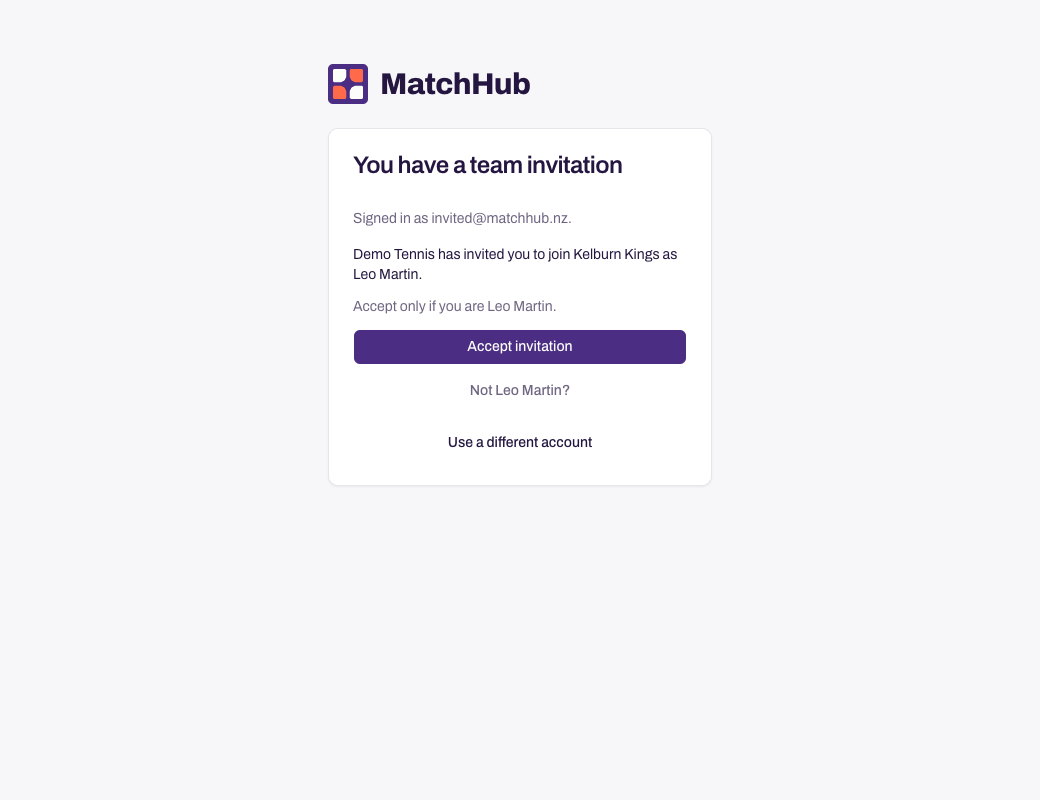
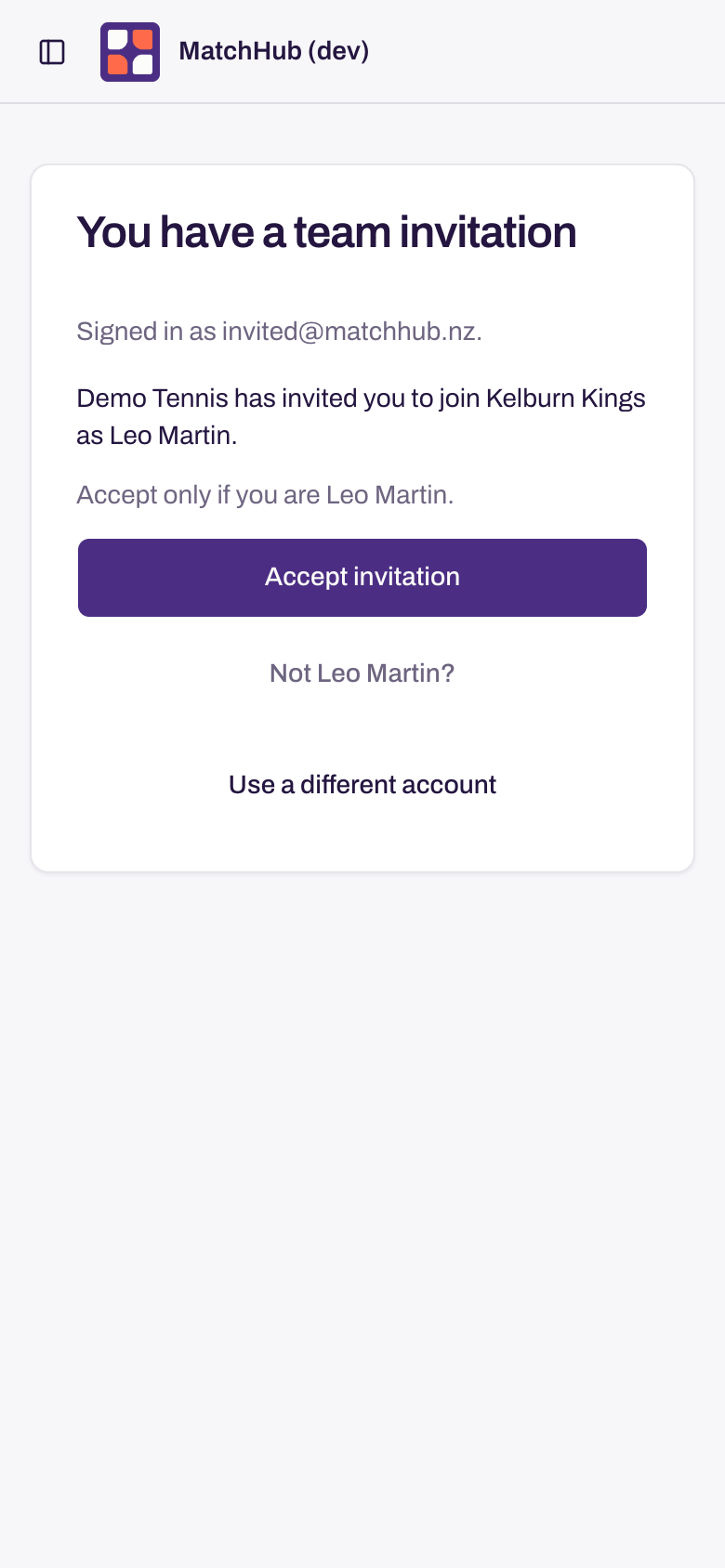
If you sign in from another page, such as a draw, and an invitation is waiting for you, MatchHub shows the invitation first.
An invitation expires after 30 days. Ask your manager for a new invitation if it has expired.
Not expecting an invitation? Ignore it. Nothing changes unless you accept. To stop emails from that organisation, select Unsubscribe next to the sender in your mail app. You can still sign in to MatchHub.
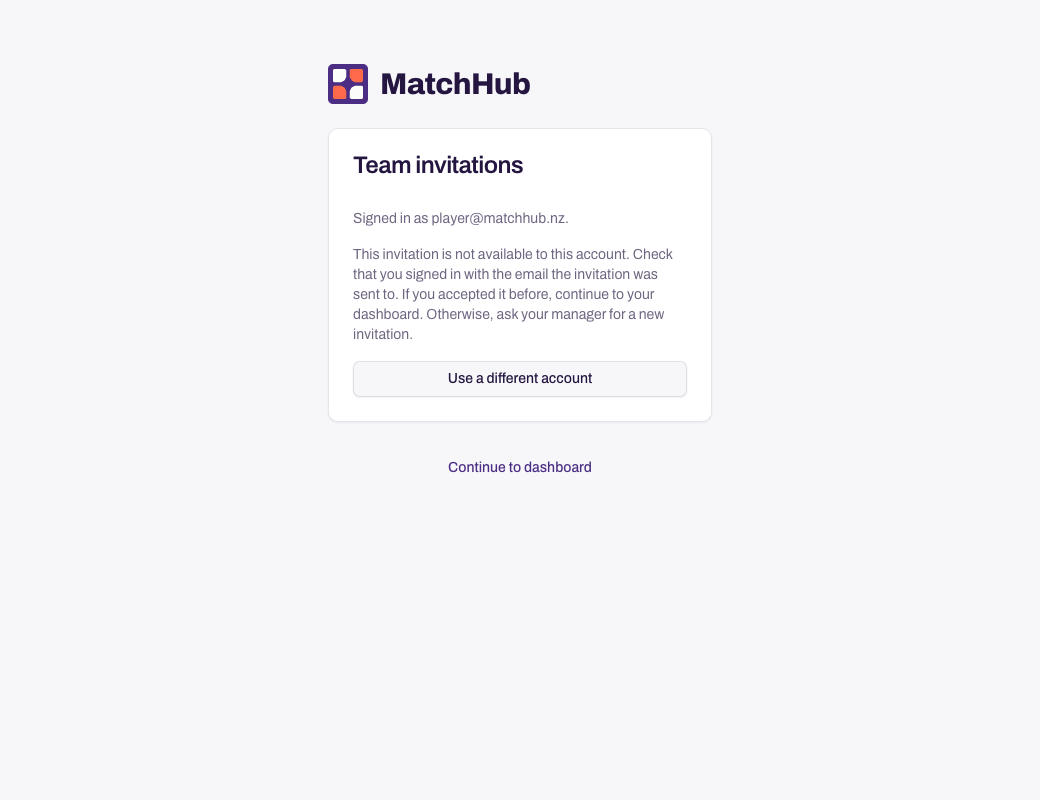
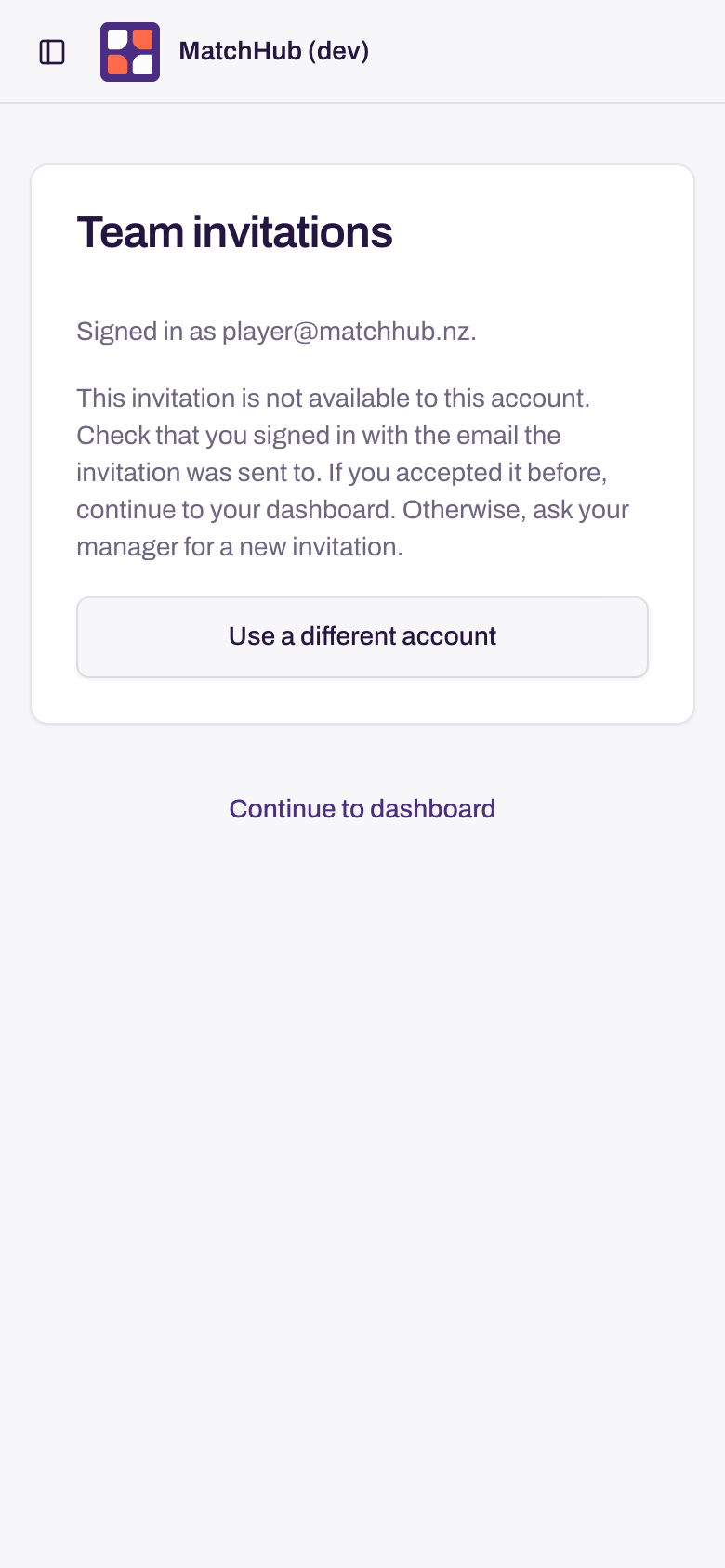
Signed in with the wrong account
- Check the email shown after Signed in as.
- Select Use a different account.
- Sign in with the email the invitation was sent to. You return to the same invitation.
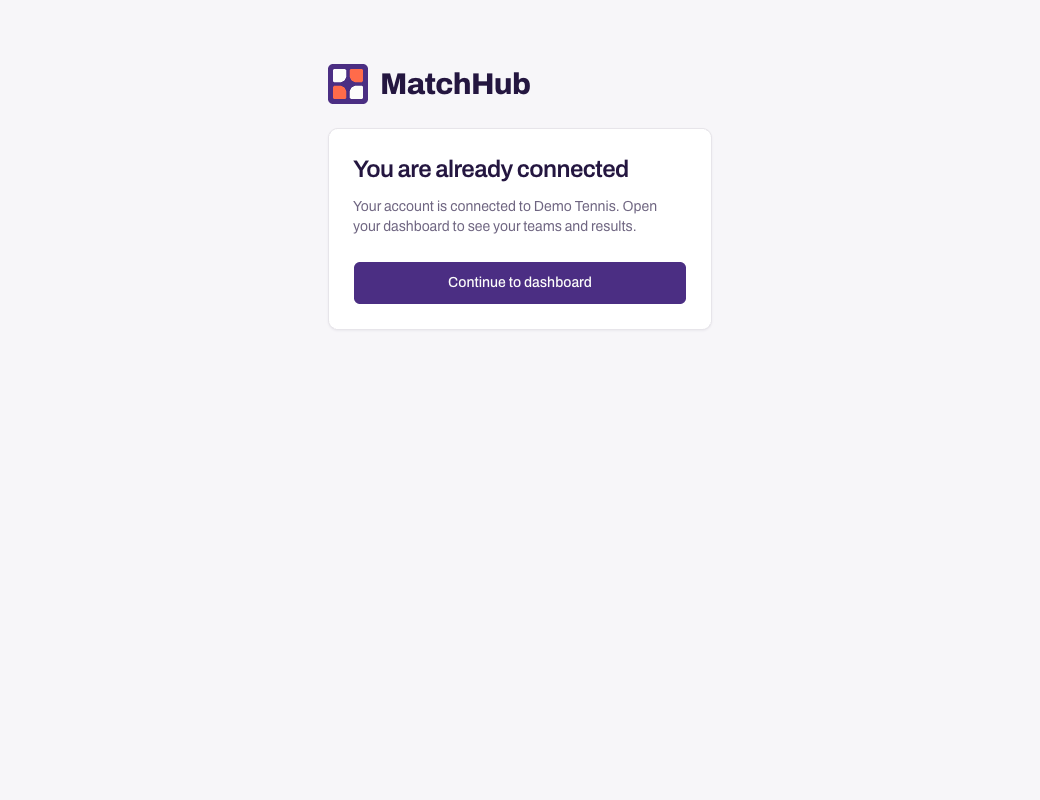
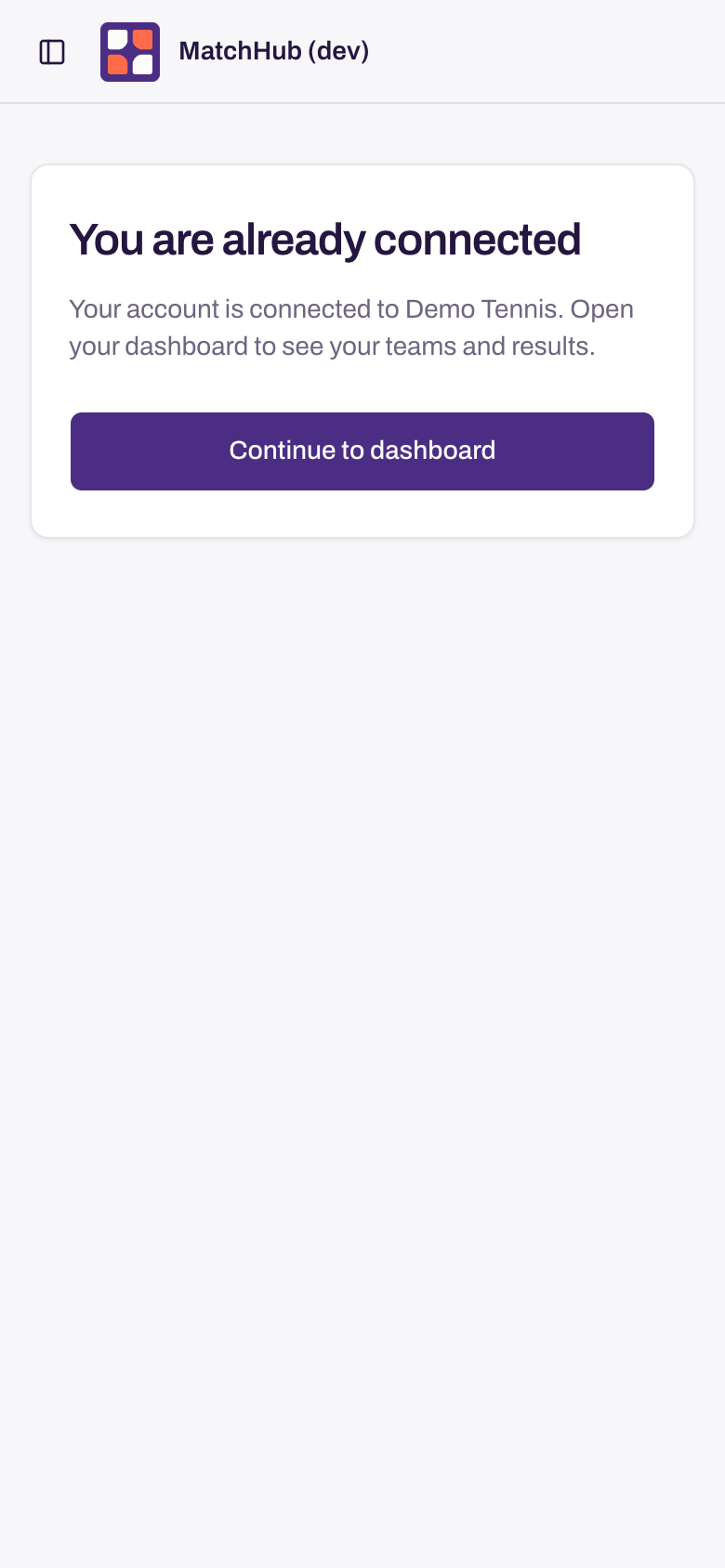
Already accepted
Select Continue to dashboard to open your organisation and teams. You do not need to accept the invitation again.
Join with a join link
- Open the link that your manager sent.
- Create an account, or sign in if you already use MatchHub.
- Check the name shown after Joining as. Select Use a different account if needed.
- Select Join.
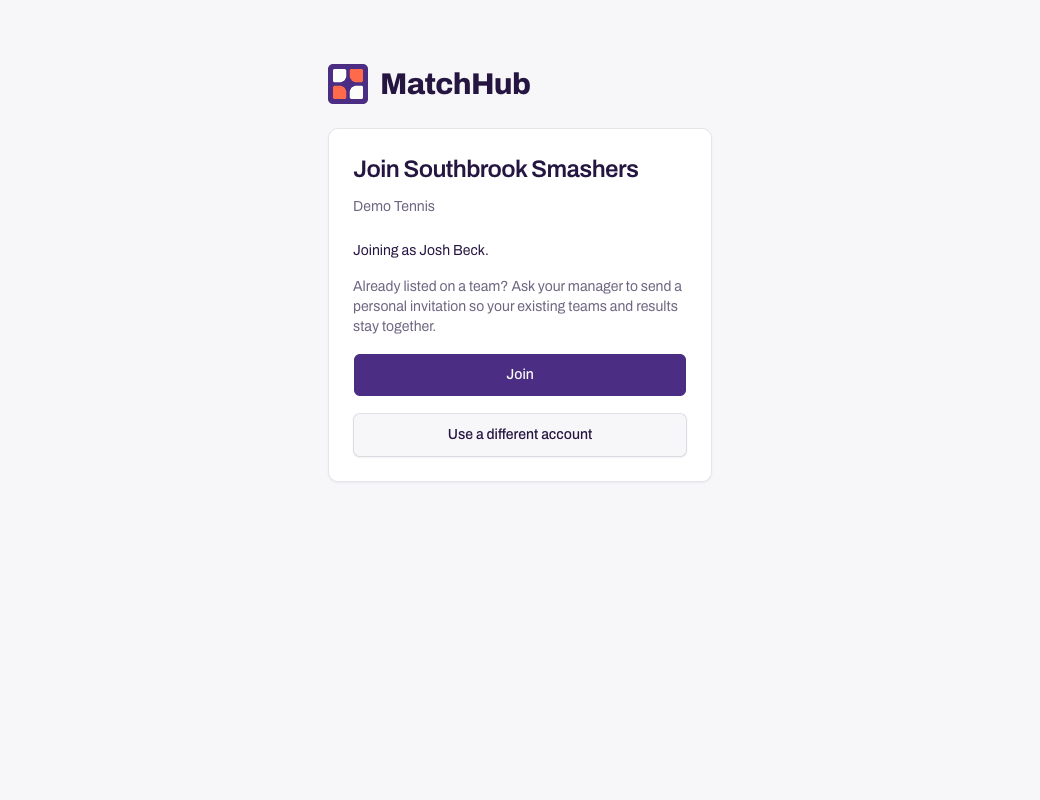
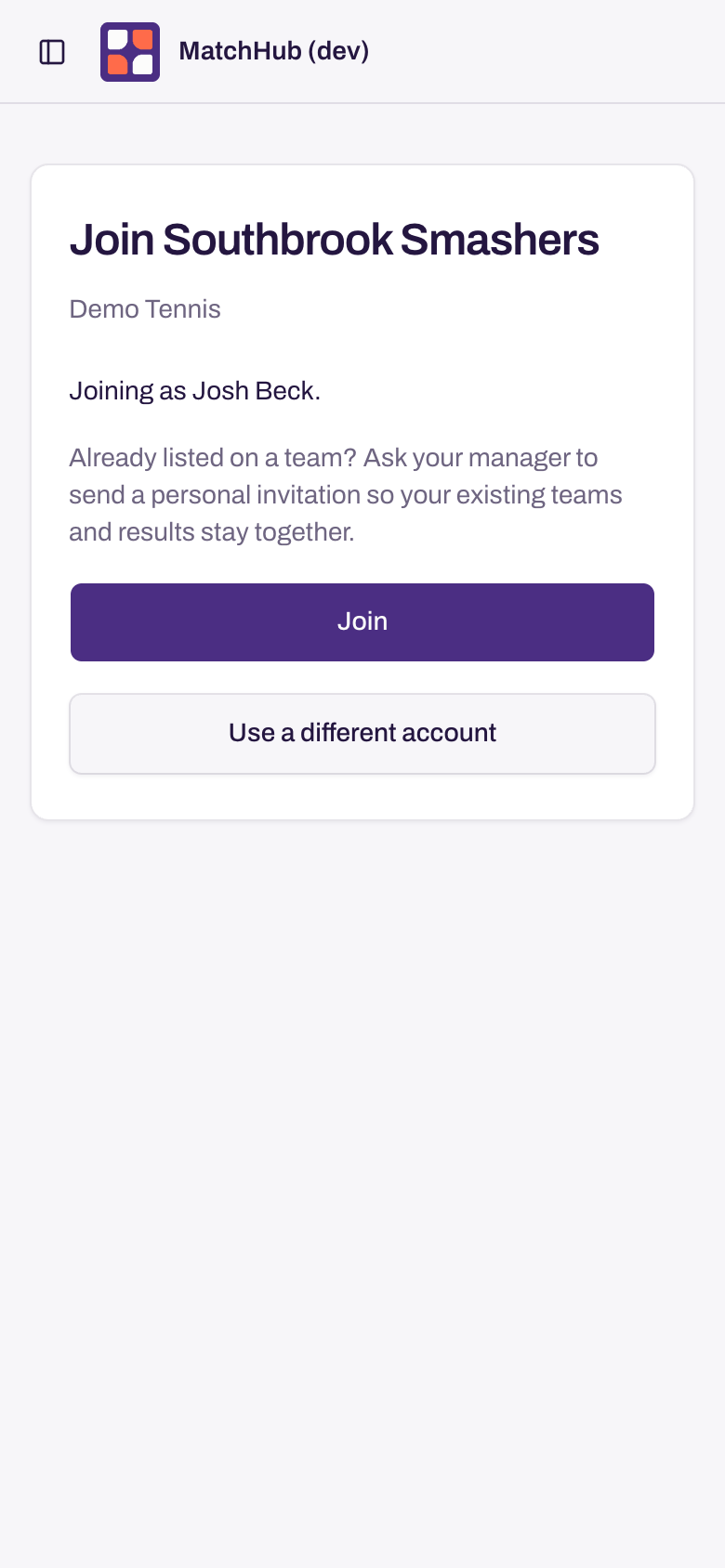
Already listed on a team but not connected to an account? Ask your manager for a personal invitation before joining. This keeps your existing teams and results on one member record. A shared join link does not match you to a record by name.
No code in your email
- Wait a minute. Then look in your spam or junk folder for an email from MatchHub.
- Select Send a new code. Use the code in the newest email.
You can leave the page to find the code. When you return to the same tab, the page still asks for the code, even if it reloaded.
- Work and school email can block codes. If you joined with a join link, select Use a different email. Enter a personal email and select Create account again.
If you were invited by email, use the address the invitation was sent to. Ask your manager to invite a different address if codes do not arrive there.
Forgot your password
On the sign-in page, select Forgot password?. MatchHub emails you a code to set a new password.
Sign in with a passkey
A passkey lets you sign in with your fingerprint, face or screen lock instead of your password. It is optional. Read Sign in with a passkey to add one.
- On the sign-in page, select the Email field.
- Choose your passkey from the list your phone or computer shows.
- Confirm with your fingerprint, face or screen lock.
On a phone or computer where you used a passkey before, you can also select Sign in with a passkey.
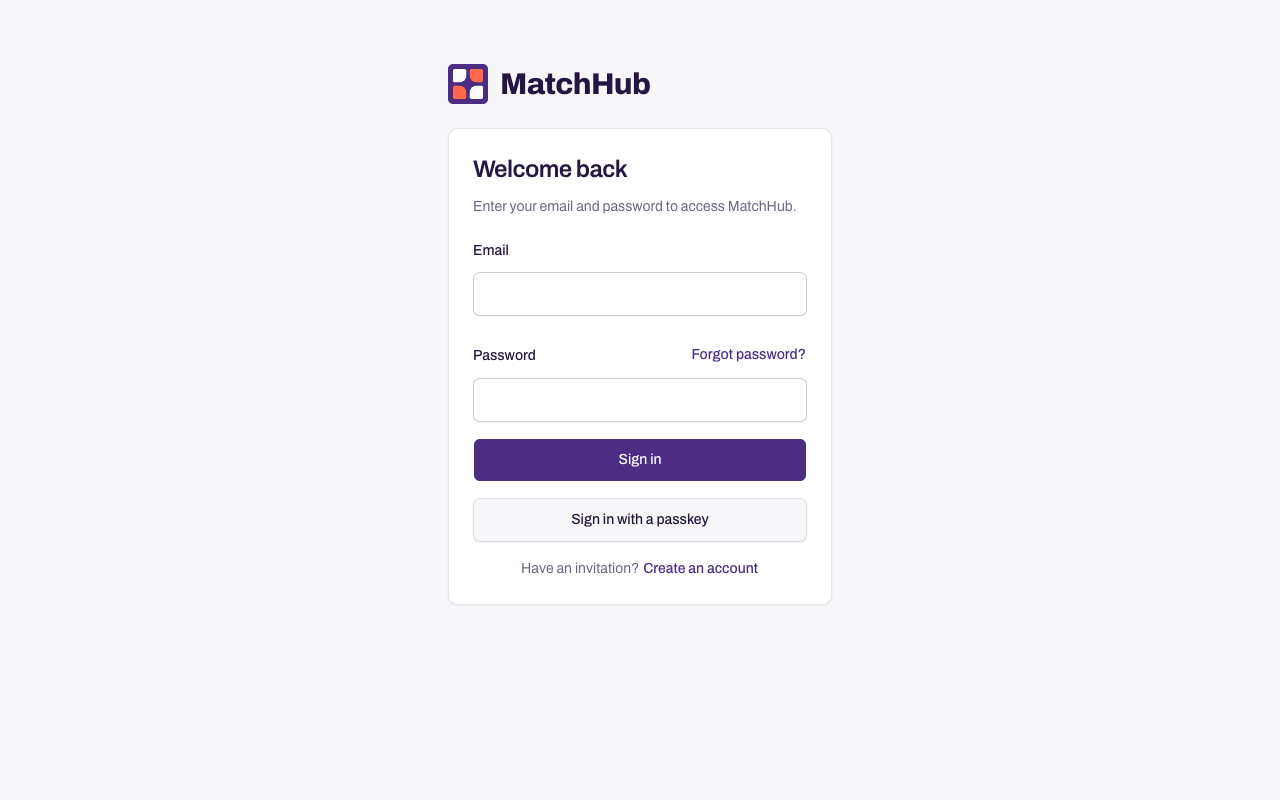
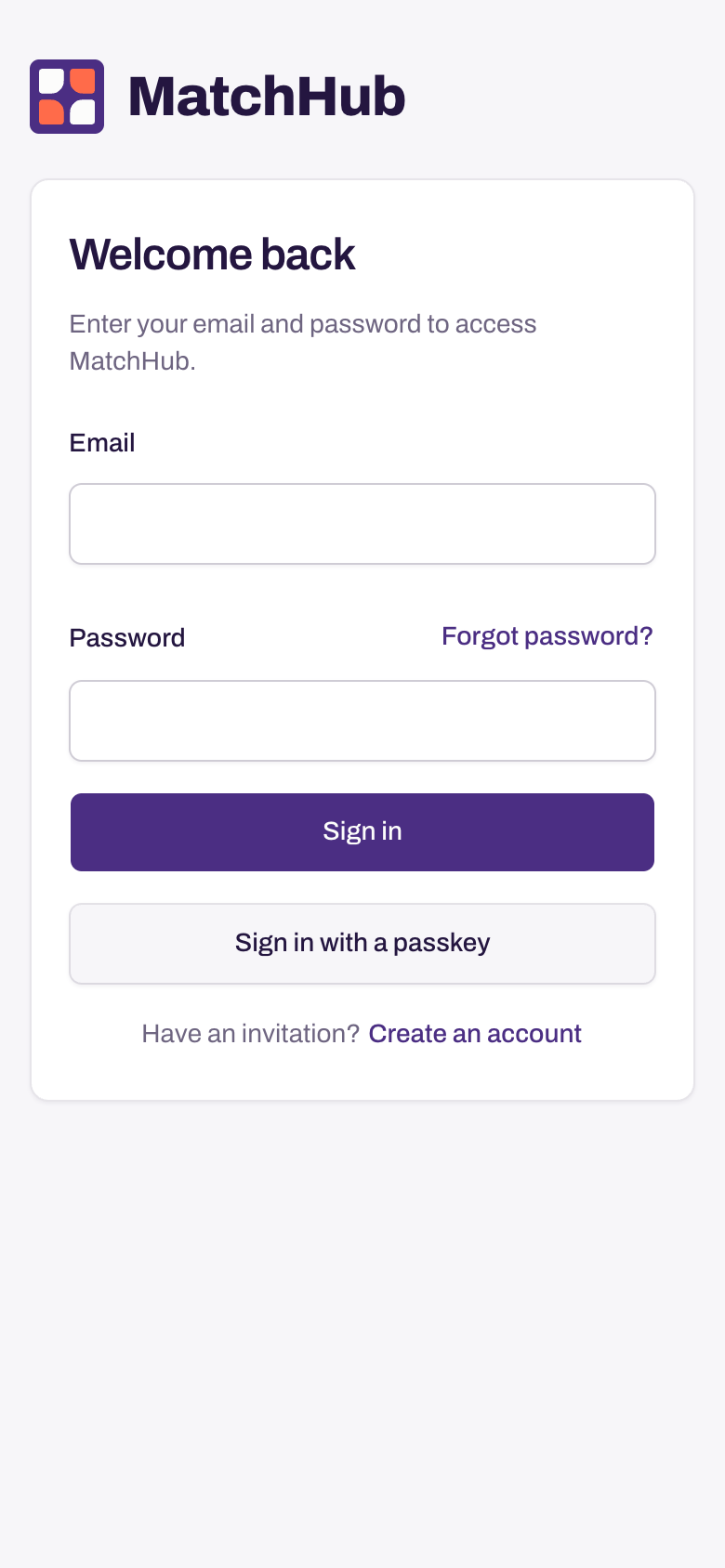
If a passkey no longer works, sign in with your email and password.
Need more help? Email hello@matchhub.nz