MatchHub help · Getting started
Sign in with a passkey
A passkey is saved by your phone or computer, like a password. You confirm with your fingerprint, face or screen lock.
Passkeys are optional. Your password still works.
Sign in with your passkey
- On the sign-in page, select the Email field.
- Choose your passkey from the list your phone or computer shows.
- Confirm with your fingerprint, face or screen lock.
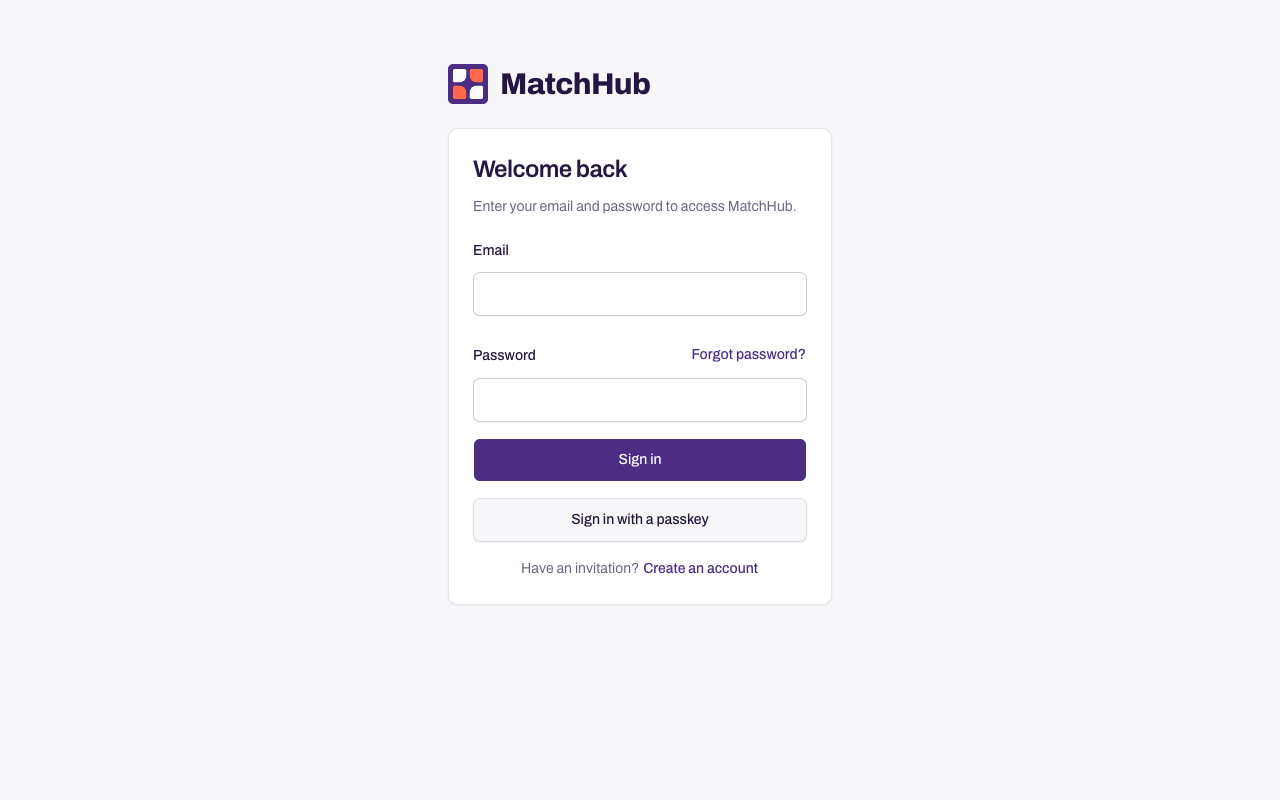
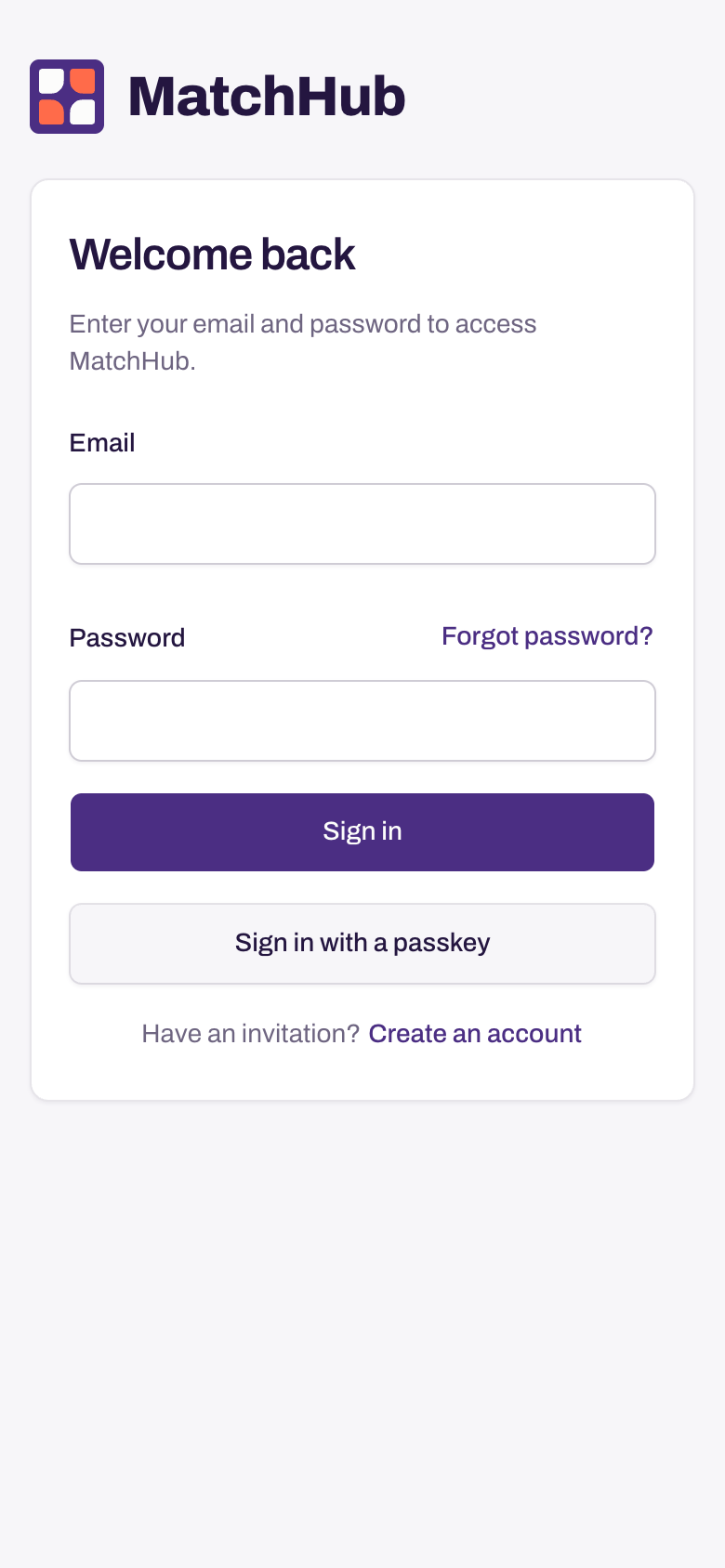
On a phone or computer where you used a passkey before, you can also select Sign in with a passkey.
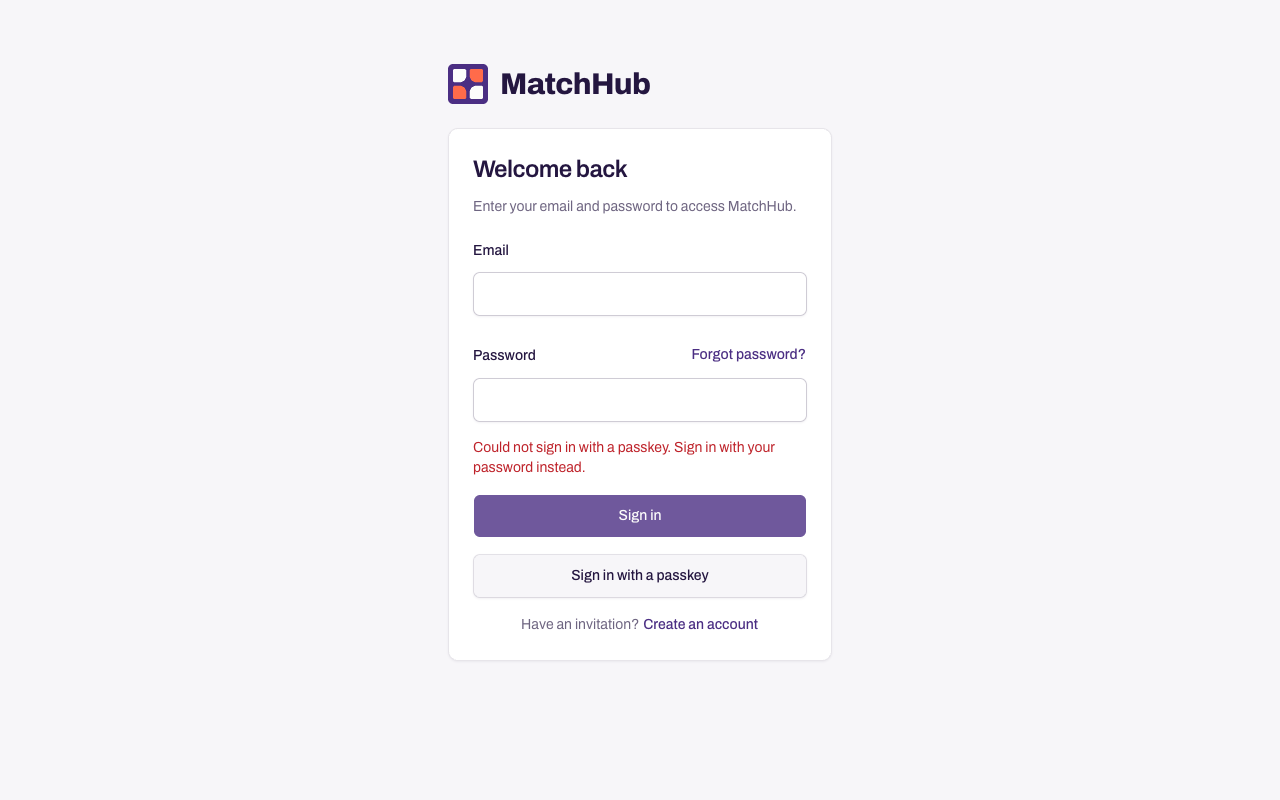
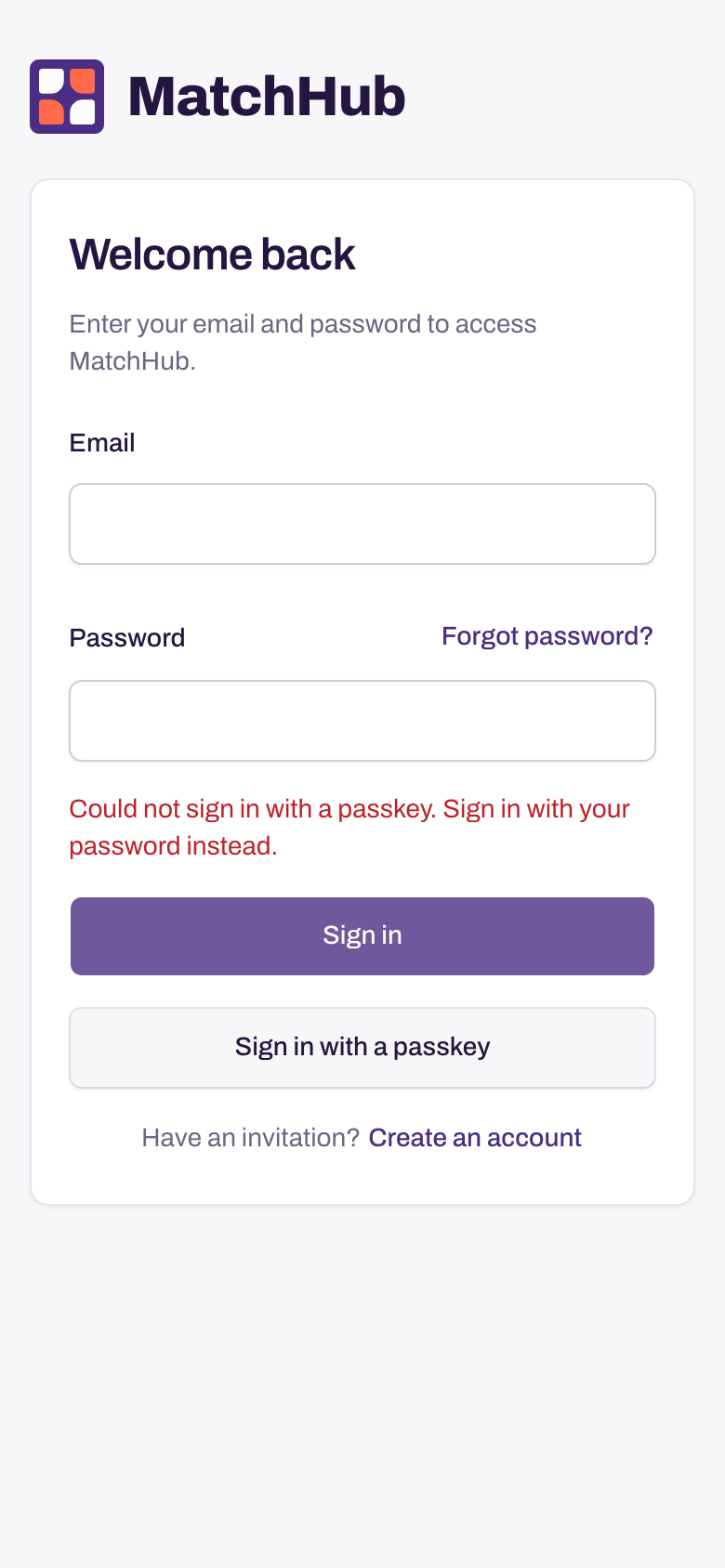
If a passkey no longer works, MatchHub tells you. Sign in with your email and password instead.
If the connection fails during passkey sign-in, you can try Sign in with a passkey again or sign in with your email and password. Your passkey stays saved.
If you sign in with a saved password, your phone or computer may add a passkey for you. It tells you when it does. You can remove it in Settings, on the Sign-in tab.
Add a passkey
- Select your name at the bottom of the menu.
- Select Settings.
- Select the Sign-in tab.
- Find Passkeys and select Add a passkey.
- Follow the instructions from your phone or computer.
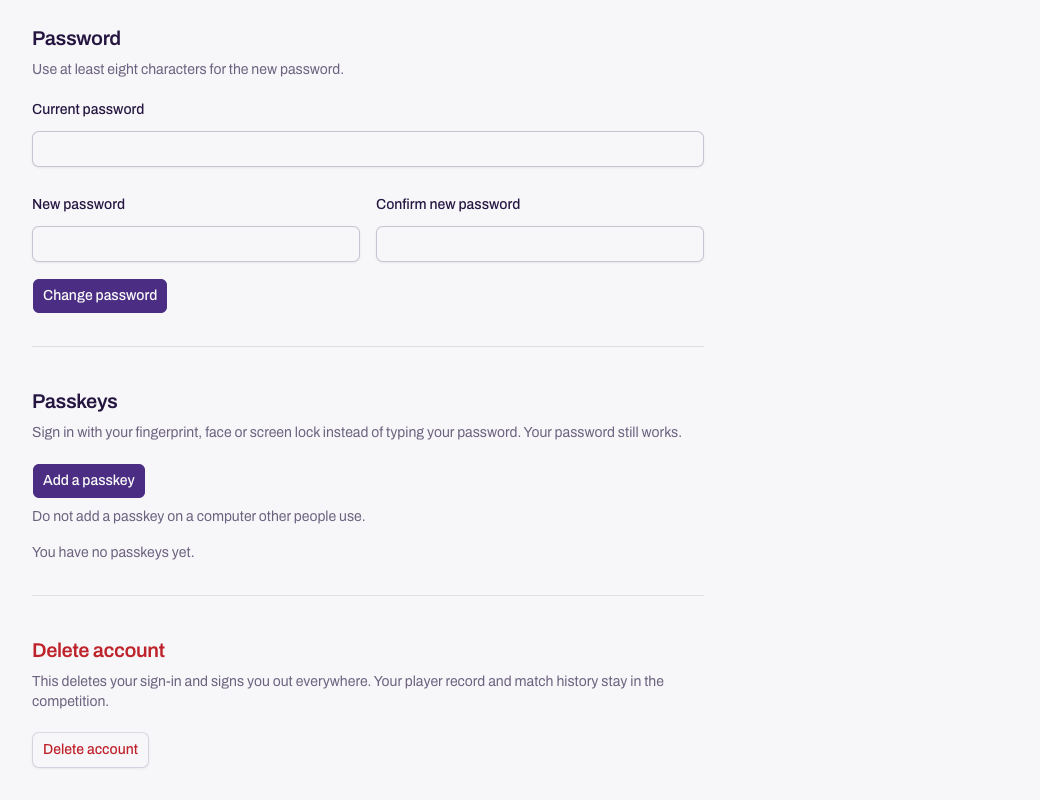
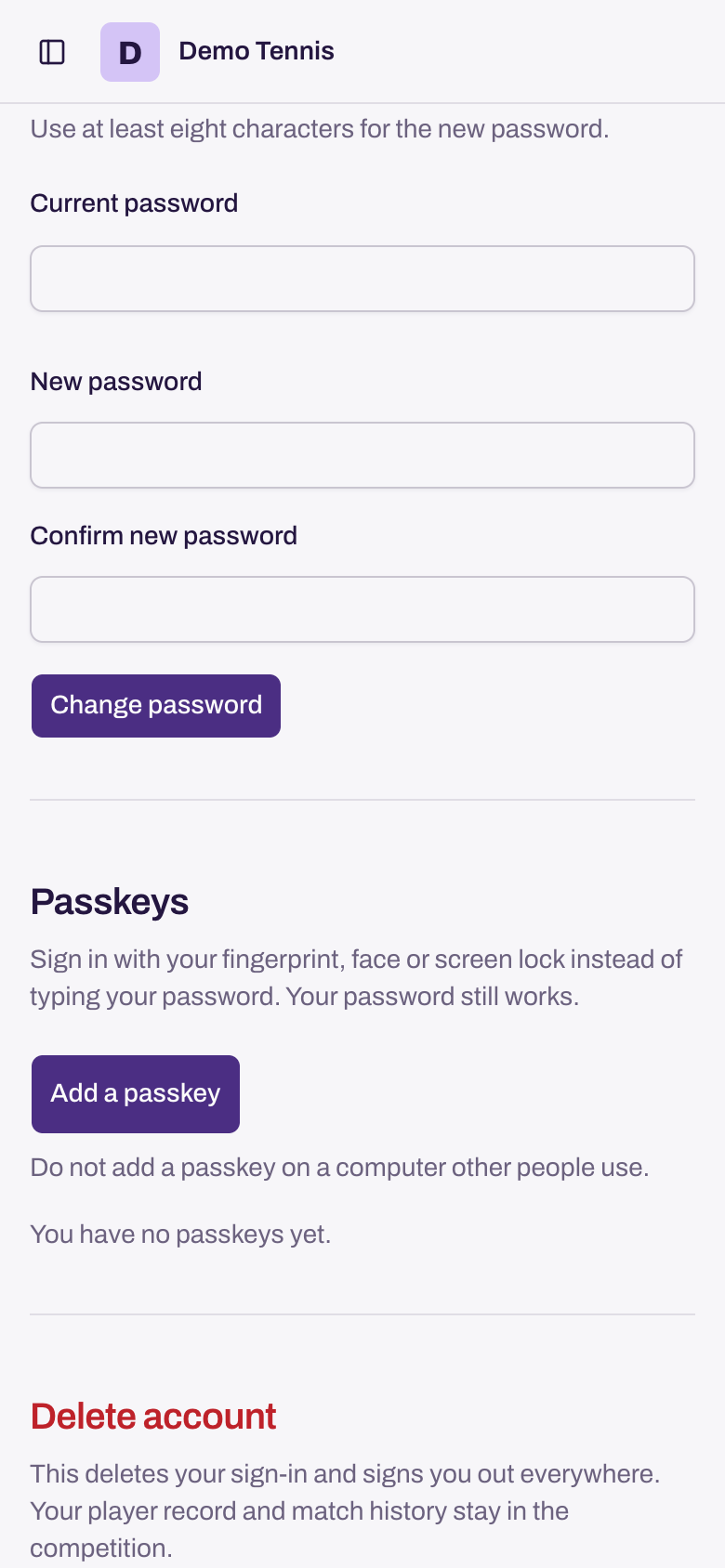
Do not add a passkey on a computer other people use.
Remove a passkey
- Open Settings and select the Sign-in tab.
- Find Passkeys and select Remove beside the passkey.
- Select Remove passkey.
Your password still works after you remove a passkey.
Need more help? Email hello@matchhub.nz