MatchHub help · Getting started
The mobile app
The MatchHub app for iPhone is in the App Store. The Android app is not in Google Play yet.
Get the app on your iPhone
- On your iPhone, open MatchHub in the App Store.
- Tap Get.
- Open MatchHub and sign in with your MatchHub email.
Open MatchHub links in the app
With the app on your iPhone, links in MatchHub emails open in the app. This works for links to a fixture, a scorecard and a division.
When you open a competition page in Safari, a banner at the top offers the app. Tap Open to see the same page in the app.
Use MatchHub in your phone's browser
MatchHub also works in the web browser on your phone. You do not need the app to do the tasks in these guides. A team manager can pick the players, enter the scores and approve a scorecard from a phone at the courts.
On a phone, the menu is behind the menu button at the top left of each page.
Put MatchHub on your home screen
A home screen icon opens MatchHub in your browser with one tap.
On an iPhone:
- Open MatchHub in Safari.
- Tap the Share button.
- Tap Add to Home Screen.
On an Android phone:
- Open MatchHub in Chrome.
- Tap the menu button (three dots).
- Tap Add to Home screen.
What the app does
On Android, swipe inward from either edge to go back to the previous page. At the first page of a tab, this returns to the previous tab you opened. When there are no previous pages or tabs, it leaves the app.
In Competitions, open a division and tap a fixture to see its result once both teams have approved it.
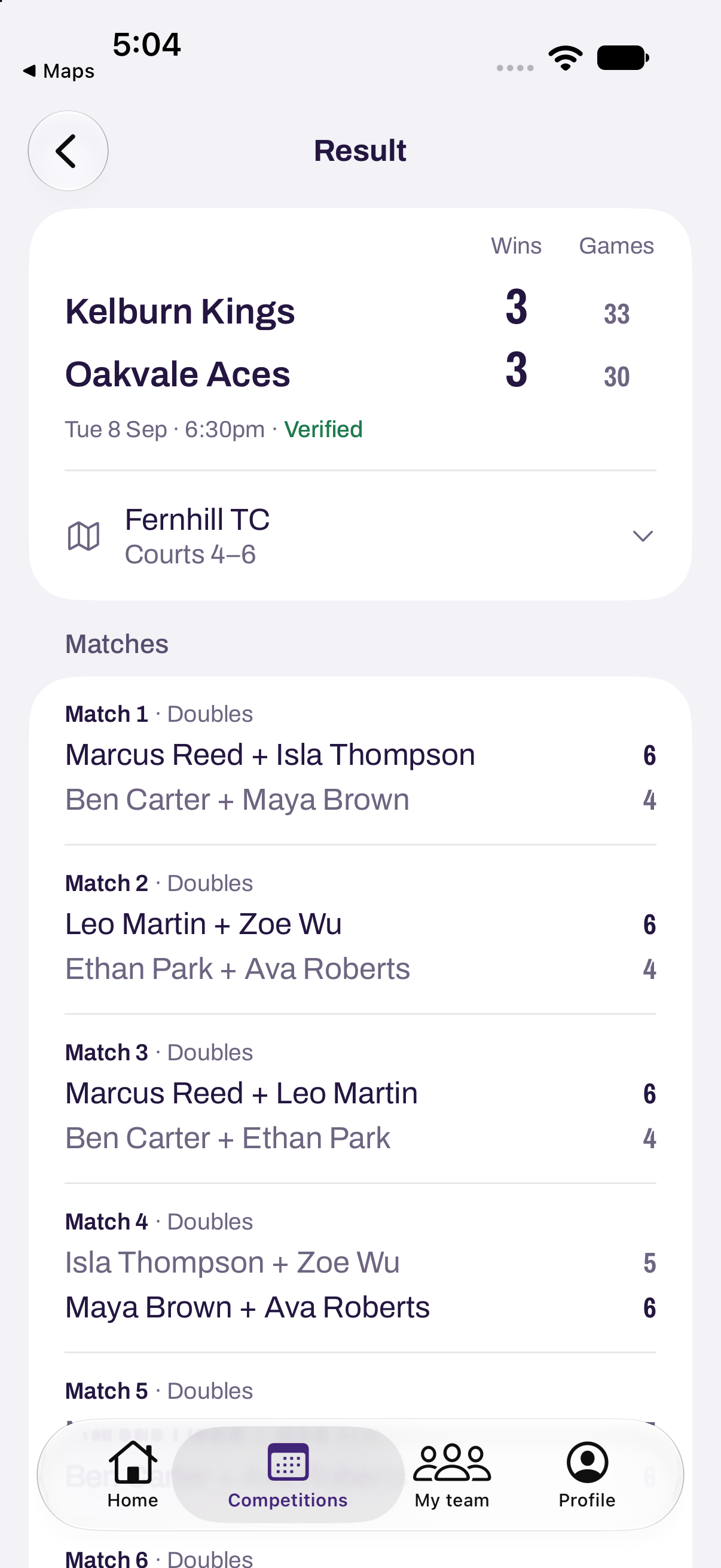
When both teams win the same number of matches, compare the totals beside Wins from left to right, such as Sets and Games. The first unequal total decides the result. The scorecard and the review page show the same totals.
Larger accessibility text puts the labelled totals below each team name.
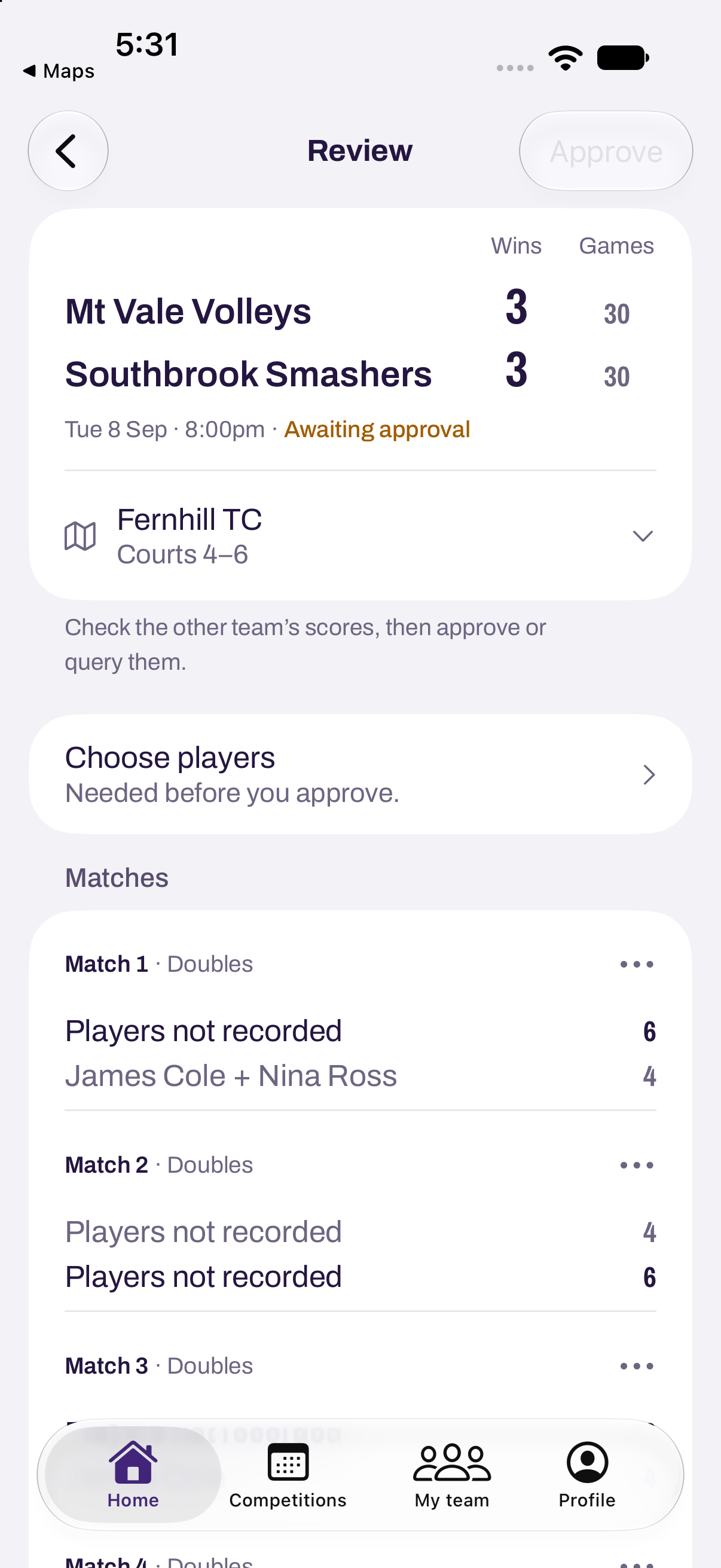
A match without a recorded lineup shows Players not recorded. A pending match without a lineup shows Players not chosen.
To query a scorecard:
- Open Review scorecard from Home.
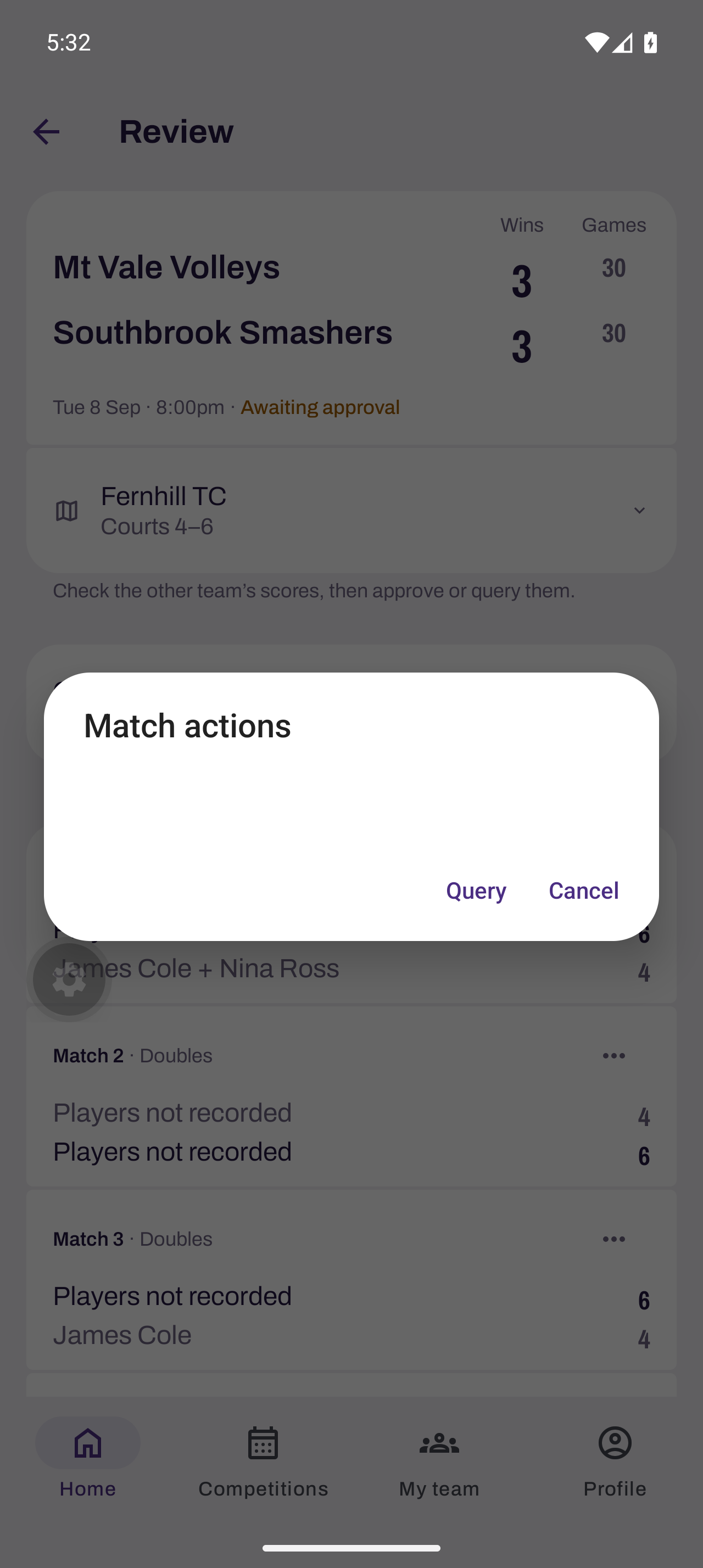
- Tap the match's three-dot menu, then Query.
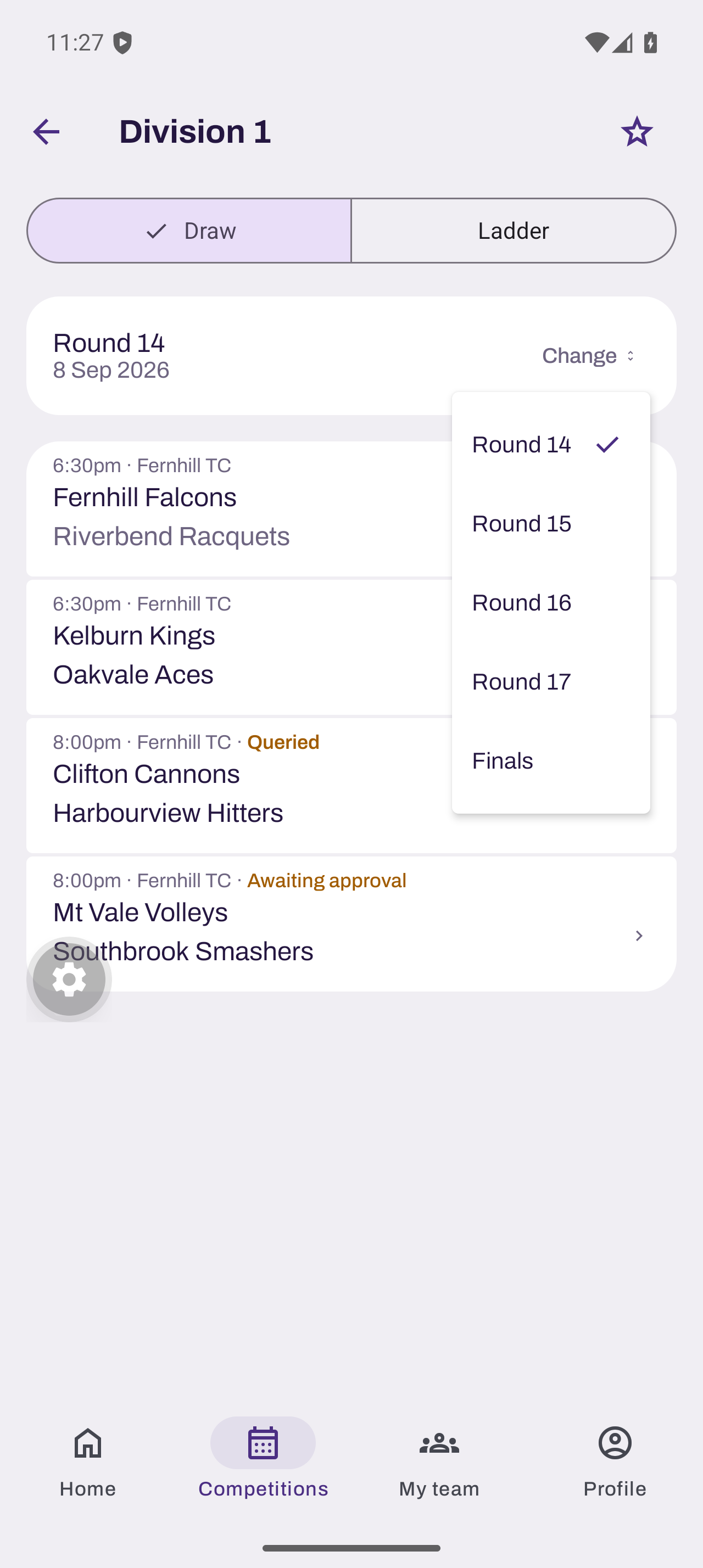
A finals stage shows every round on one page, from the first round to the final.
- Open the division and tap Draw.
- Tap Change beside the selected round or stage.
- Choose Finals, or the name your organiser gave the stage.
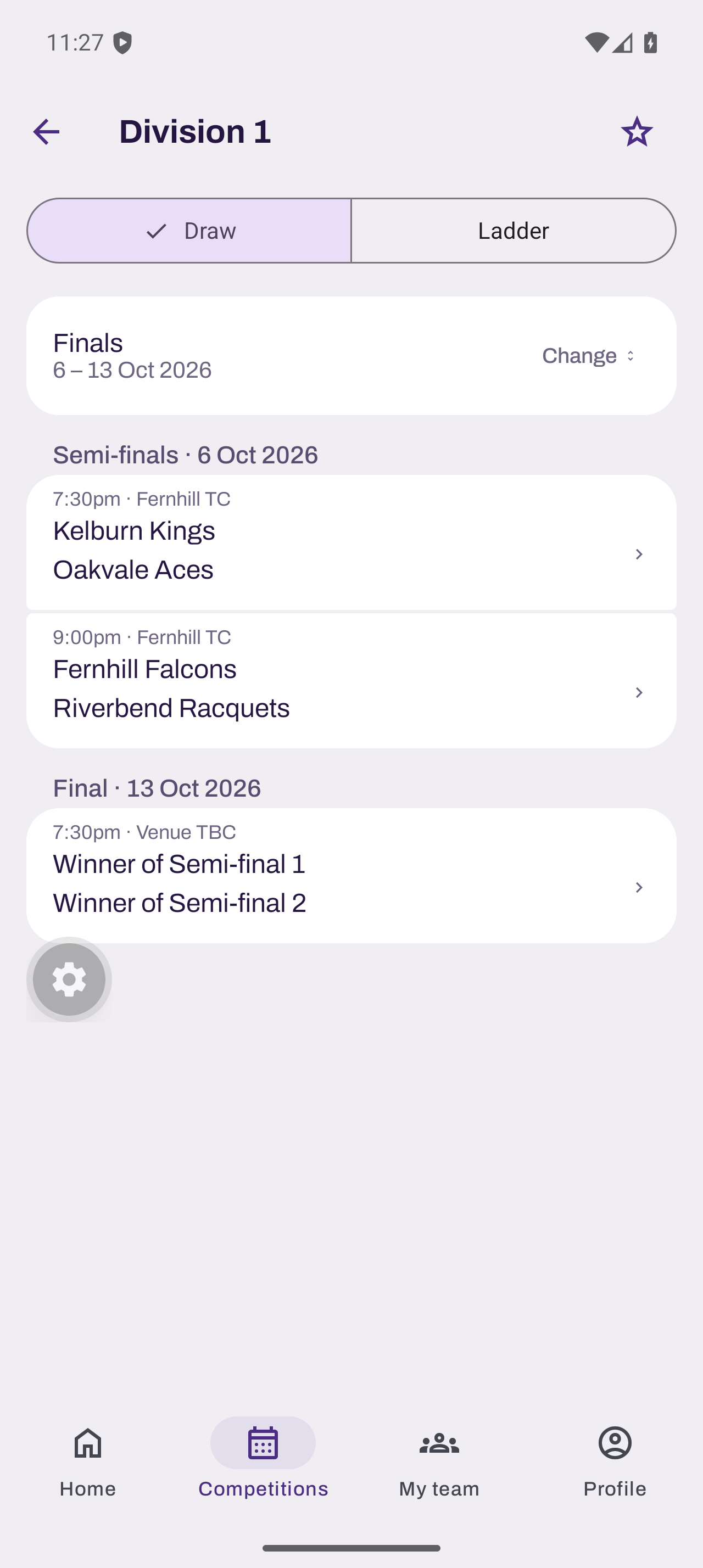
Once the finals are drawn, the ladder is headed Ladder before the finals. A division played only as a knockout has no ladder, so it opens the draw directly. The Change action appears when there is another round or stage to choose.
The app sends notifications to your phone. For example, it tells a manager when the other team submits a scorecard.
On Android, a team manager opens a player in My team to change Playing member or choose Remove from team. These controls are inside the player's page. To add a player, the manager taps Add player at the bottom of My team.
The app keeps scorecard scores and lineup changes on your phone when there is no connection. It sends them when you reconnect. If a saved change cannot be read, Home will ask you to open the scorecard and check it.
Record a rain-off in the app
Team managers and assistant managers can mark every match of a fixture at once.
- Open the scorecard and tap Whole fixture above the matches, below Choose players or Change players.
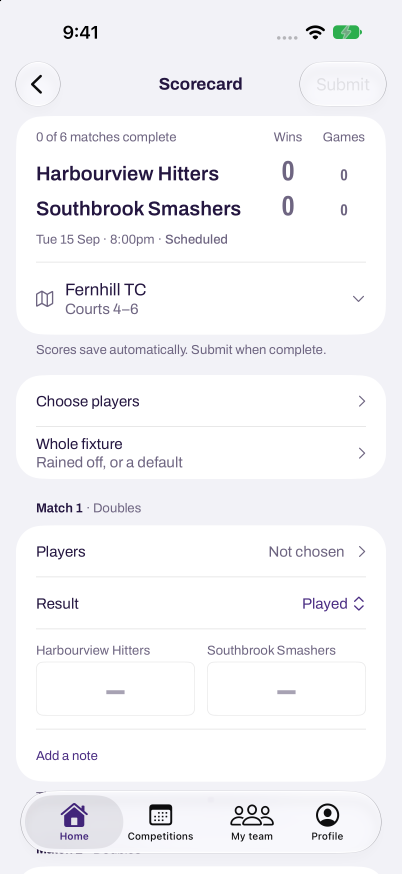
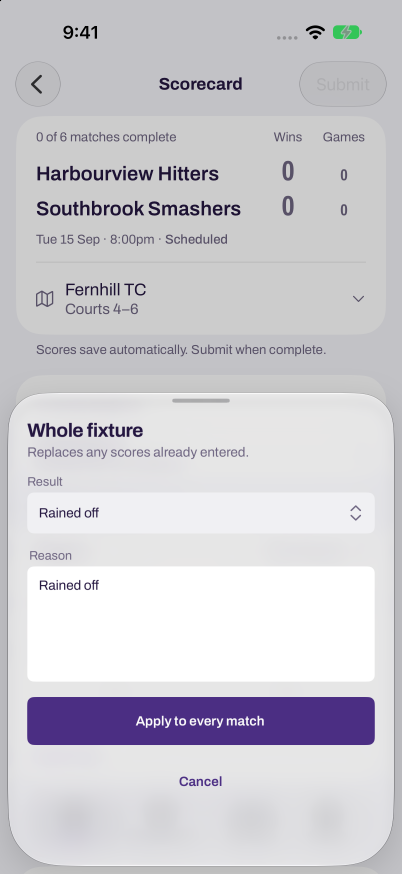
- Choose Rained off, or the team that defaulted, in Result.
- Check the Reason. For a rain-off it reads Rained off.
- Tap Apply to every match.
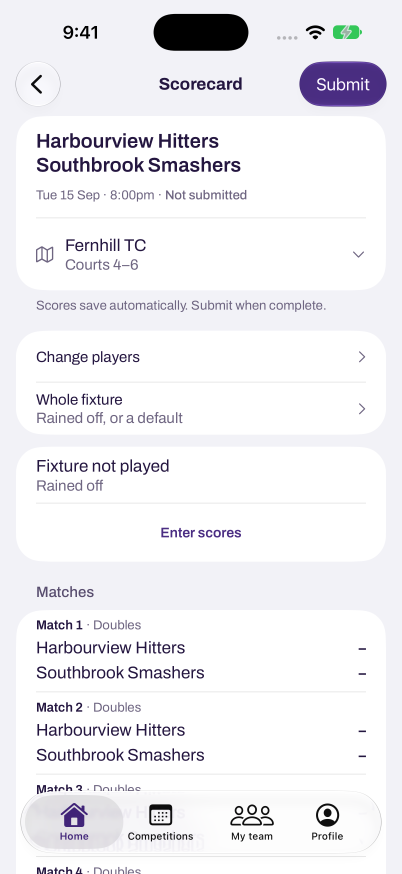
- Tap Submit to send the scorecard for approval.
The scorecard then shows the result once, above the matches. To enter scores instead, tap Enter scores. Each match then waits for its score.
Find the courts in the app
- Open Home and find Next fixture, or open a fixture in Competitions.
- Check the venue and courts under the teams.
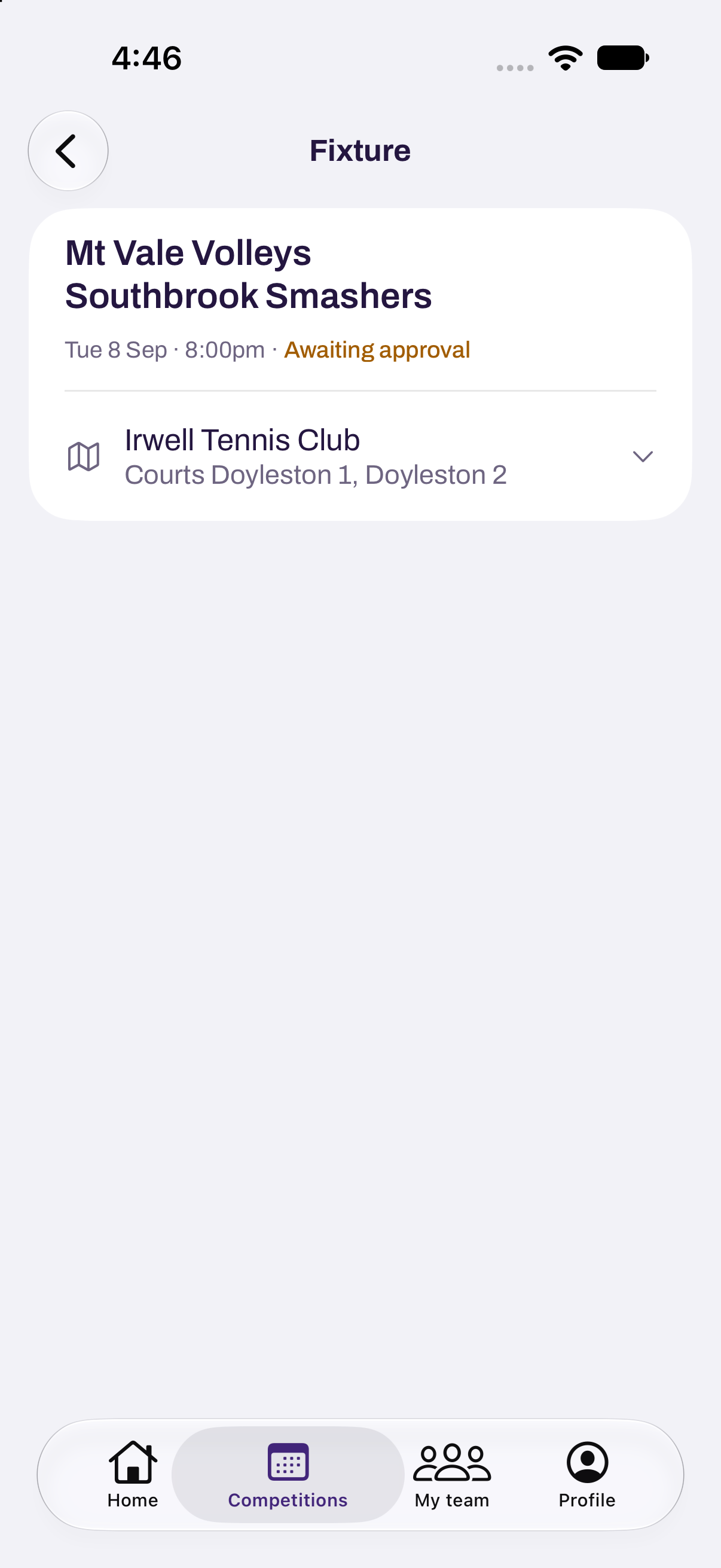
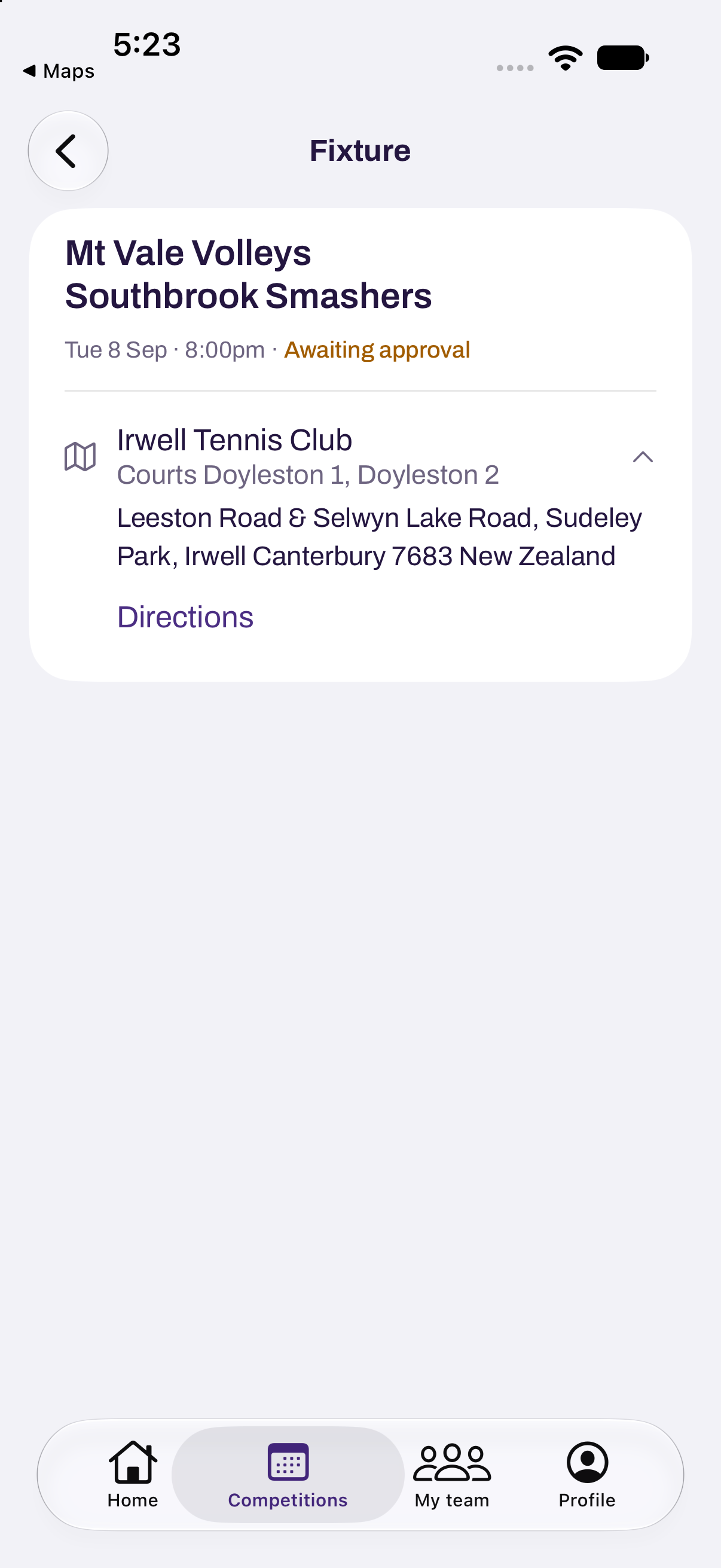
- Tap the venue to show its full address.
- Tap Directions to open the venue in Maps. On iPhone, this opens Apple Maps. On Android, this opens Google Maps. If the venue has no address, the venue cannot be opened.
Use Siri and Shortcuts on iPhone
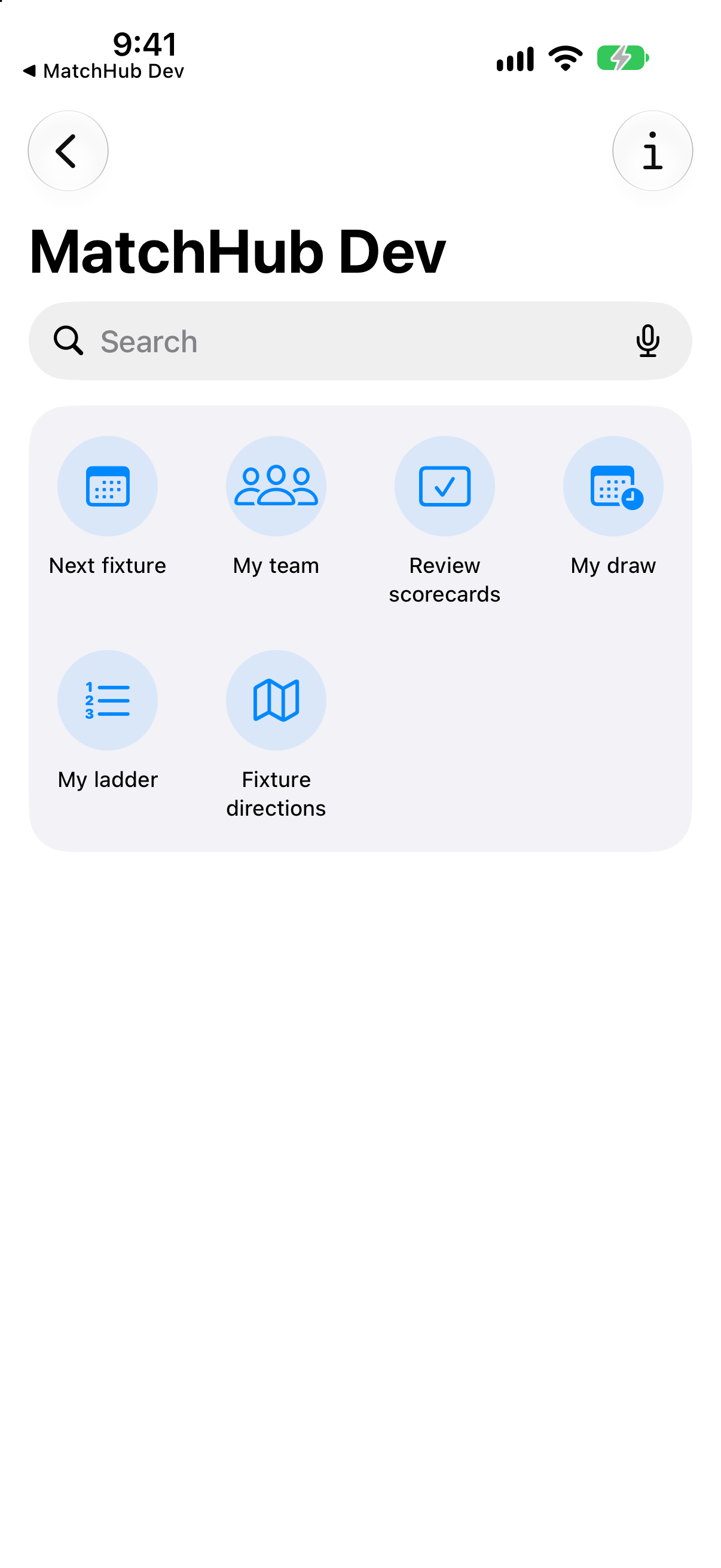
- Open the Shortcuts app and find MatchHub.
- Choose the action you want. You can also say its phrase to Siri.
| Action | Say to Siri | What opens |
|---|---|---|
| Next fixture | "Open my next fixture in MatchHub" | Your next fixture's scorecard |
| My team | "Open my team in MatchHub" | Your selected team's squad |
| Review scorecards | "Review scorecards in MatchHub" | The scorecard awaiting your review |
| My draw | "Show my draw in MatchHub" | Your team's division draw |
| My ladder | "Show my ladder in MatchHub" | Your team's division ladder |
| Fixture directions | "Get directions to my next fixture in MatchHub" | Apple Maps directions to the venue |
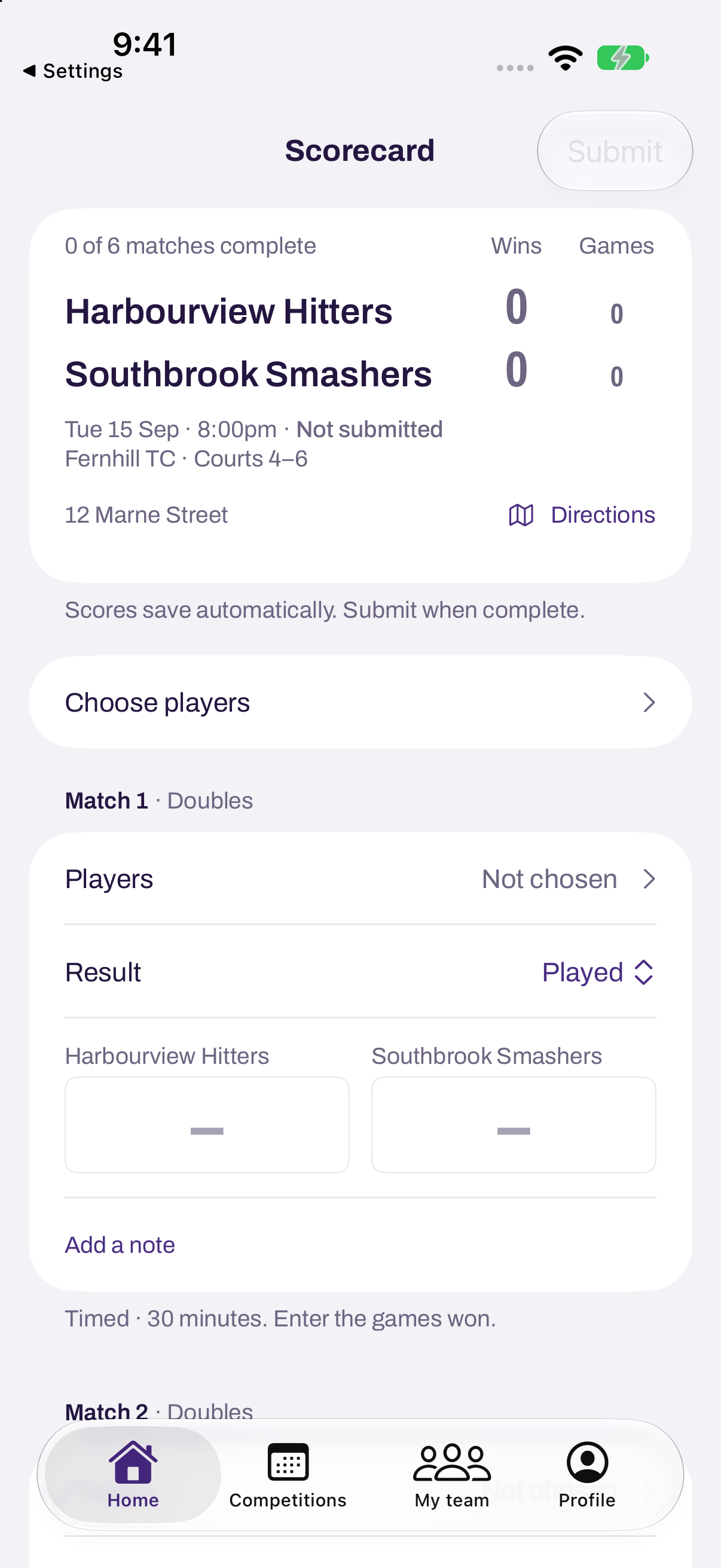
- Sign in if asked. If asked to choose a team, choose the team you want.
- MatchHub opens the page for your saved team choice.
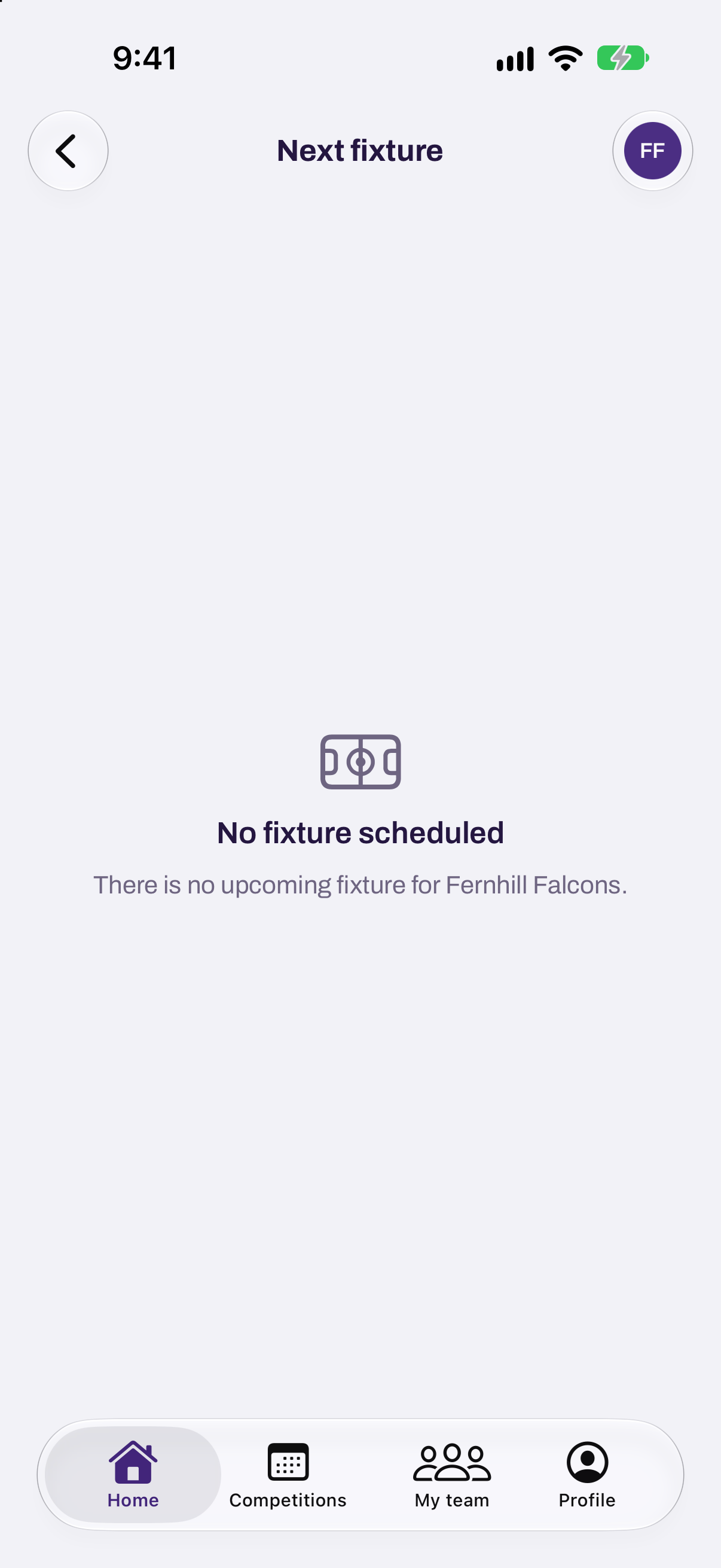
If there is no upcoming fixture, Next fixture and Fixture directions show No fixture scheduled. Use the team button in the top bar to choose another team.
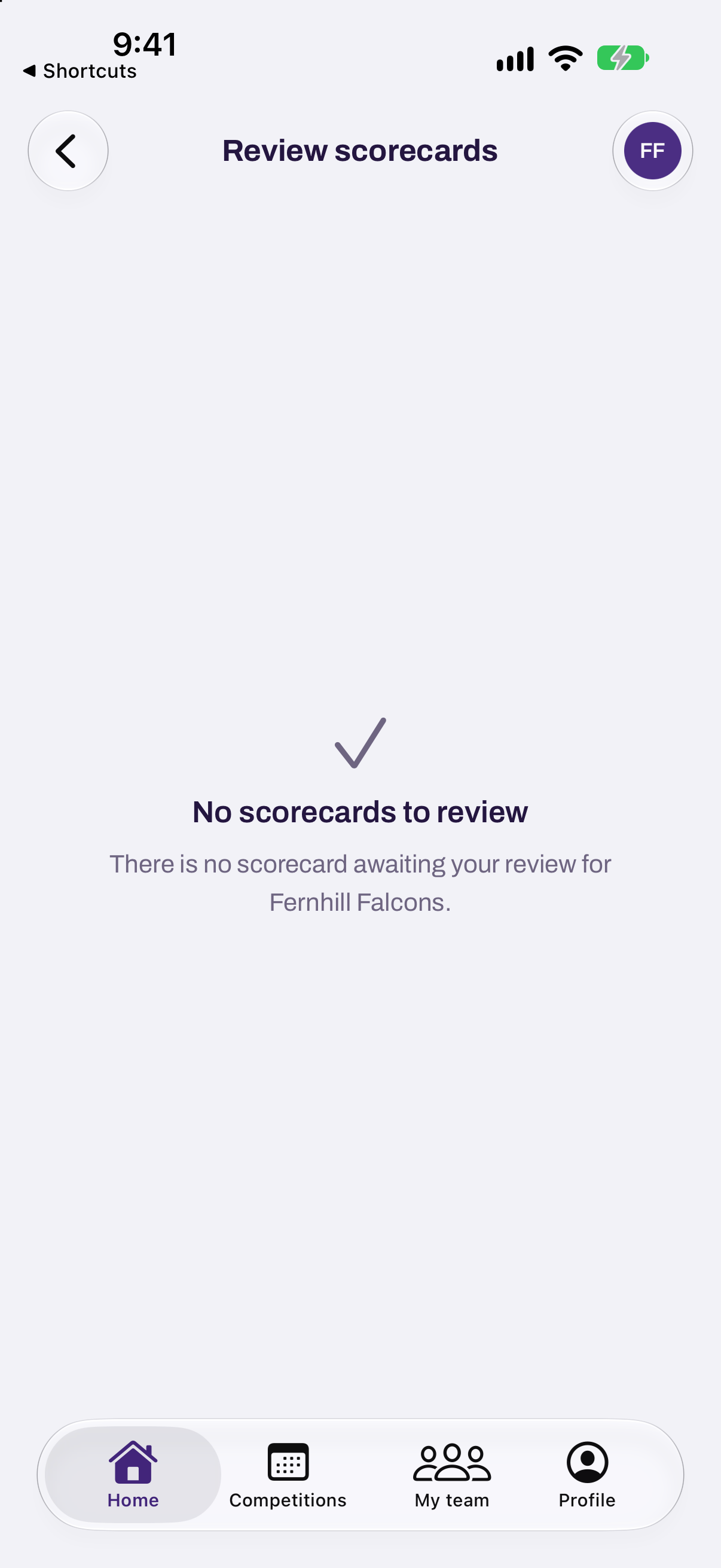
Review scorecards opens only a card you can review. If there is none, it shows No scorecards to review.
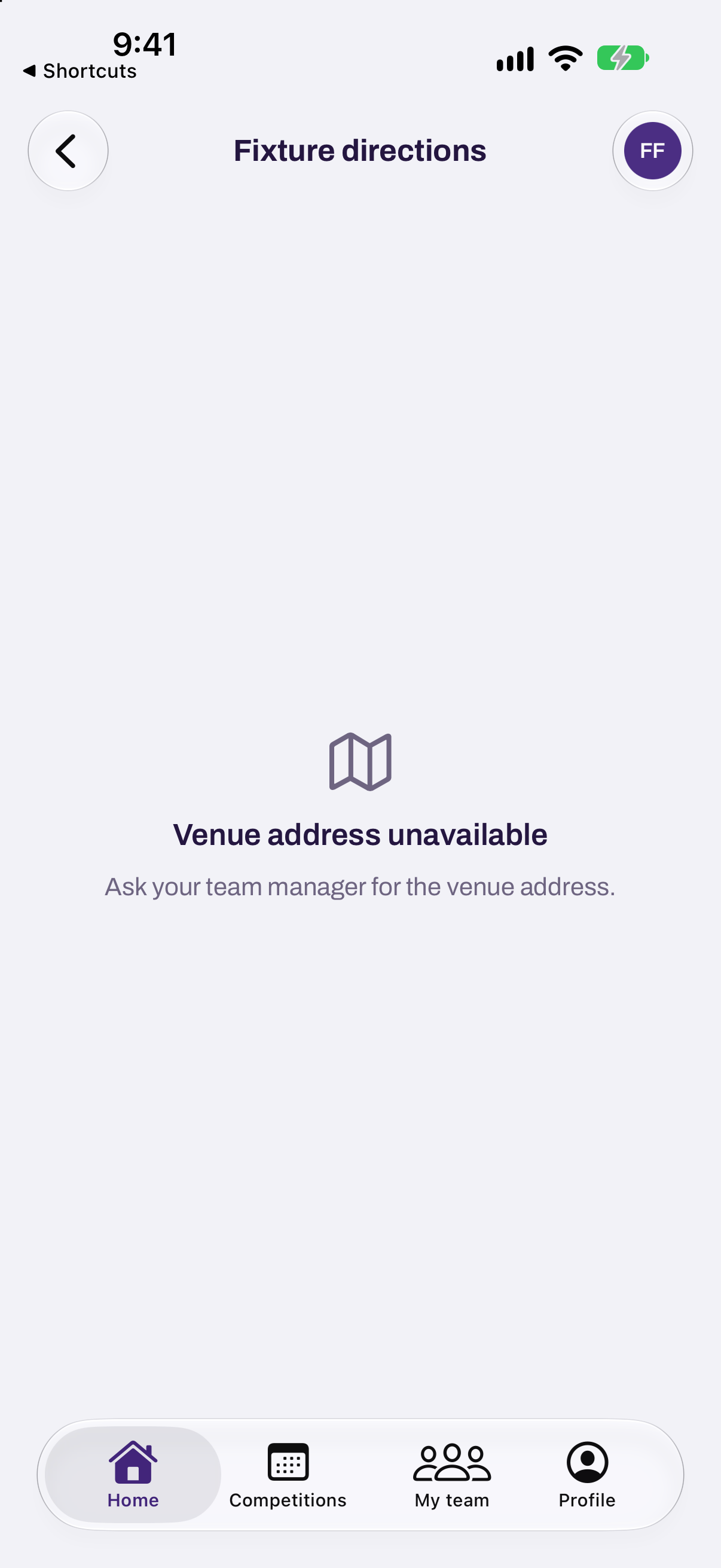
Fixture directions opens the app before opening Maps. If the venue has no address, it shows Venue address unavailable. Ask your team manager for the address. If Maps does not open, tap Try again.
These actions open the app. Siri does not read fixture details aloud or change scores.
Put a MatchHub action on the Action button
On an iPhone with an Action button:
- In Shortcuts, create a shortcut containing the MatchHub action you want and save it.
- Open Settings, then Action Button.
- Choose Shortcut, tap Choose a Shortcut, and select the shortcut you saved.
- Press and hold the Action button to run it.
Add a player in the app
- Open My team. On iPhone, tap the plus button. On Android, tap Add player.
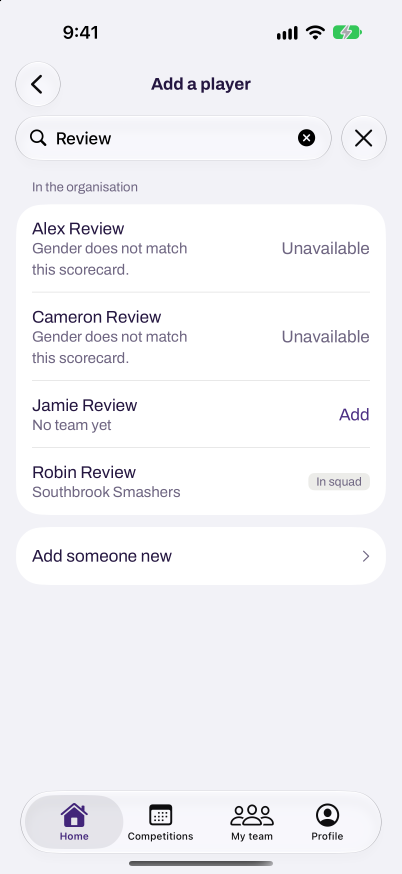
- Type the person's name in the search field. If they are listed, tap Add beside their name. The app returns to My team, with them in the squad.
- If they are not listed, tap Add someone new.
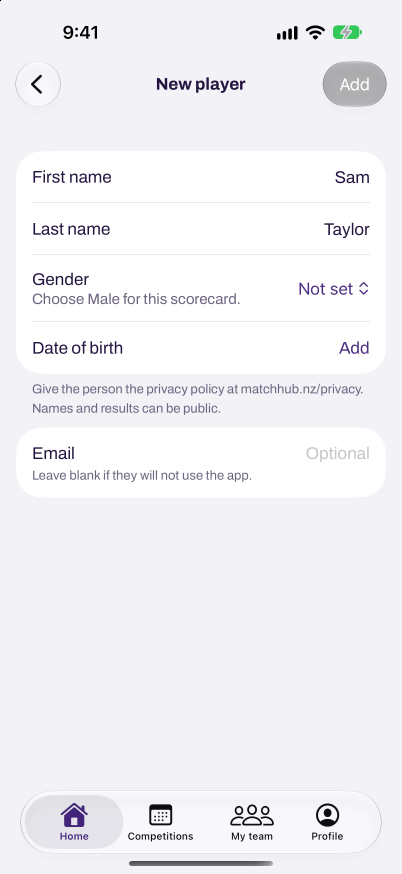
- Enter their First name and Last name. Gender is optional unless the scorecard requires it. Date of birth and Email are optional.
- Tap Add. With an email, the button reads Add and invite and sends them an invitation.
To invite a player already in the squad:
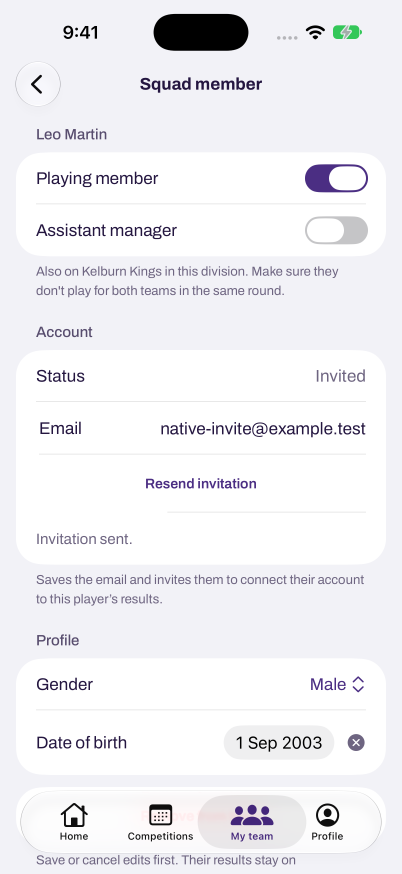
- Open My team and tap the player. Only the team manager or an administrator can invite an existing player.
- In Account, enter their Email and tap Send invitation. This saves the email and invites them to connect an account to their existing results.
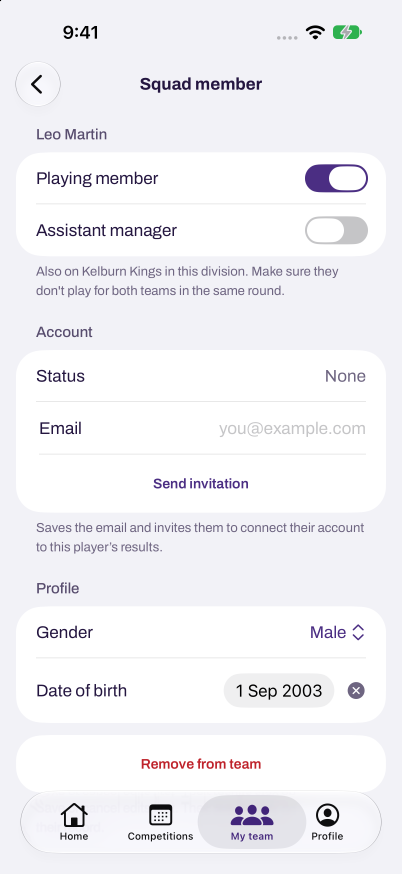
- For a player marked Invited, tap Resend invitation to send it again. A player marked Signed in manages their own email.
Team managers, assistant managers and administrators can add players while they complete a scorecard. You need an internet connection. The scorecard must still allow player changes.
- Open Choose players from the scorecard.
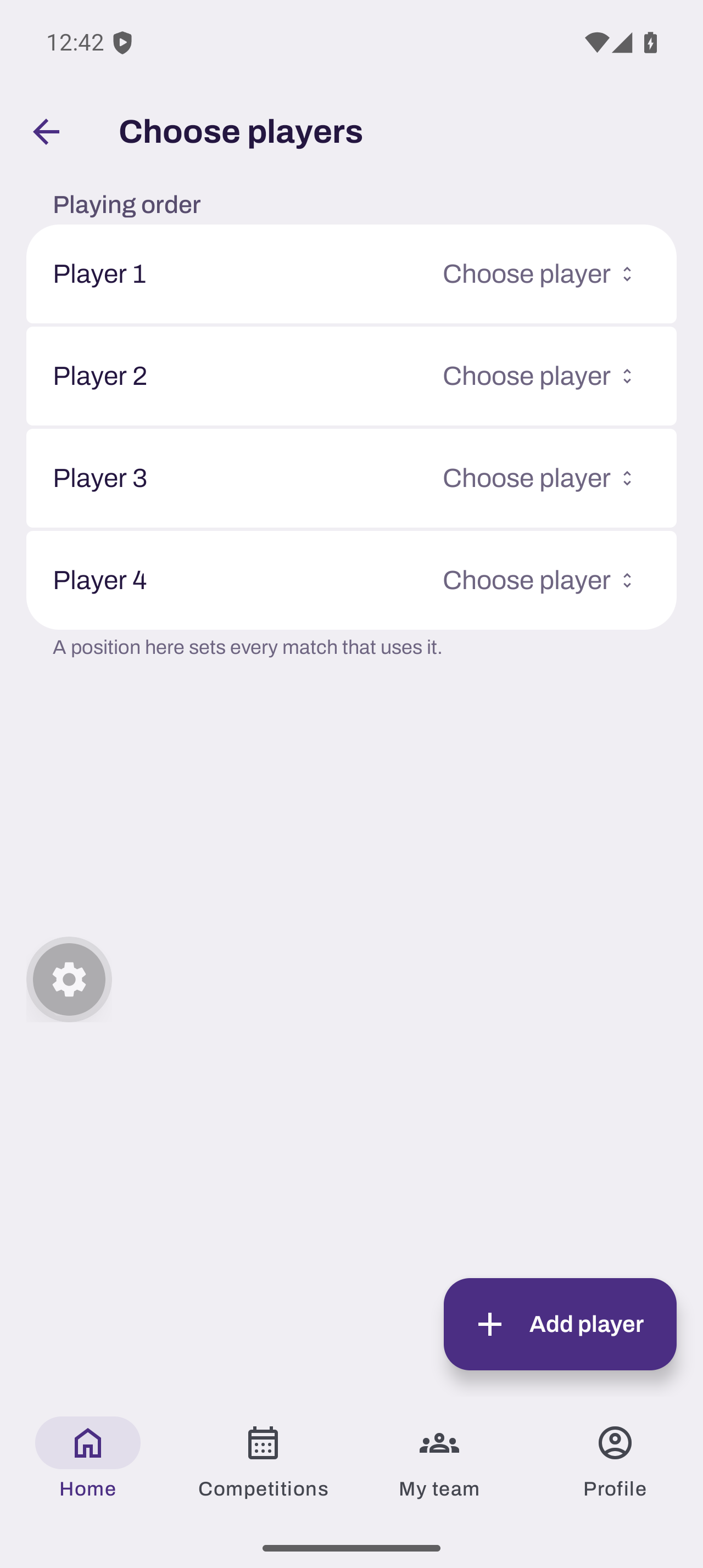
- Tap Add player. On Android, it floats at the bottom right. On iPhone, it is below the player choices.
- Search for the player. If they are not listed, tap Add someone new and enter their details.
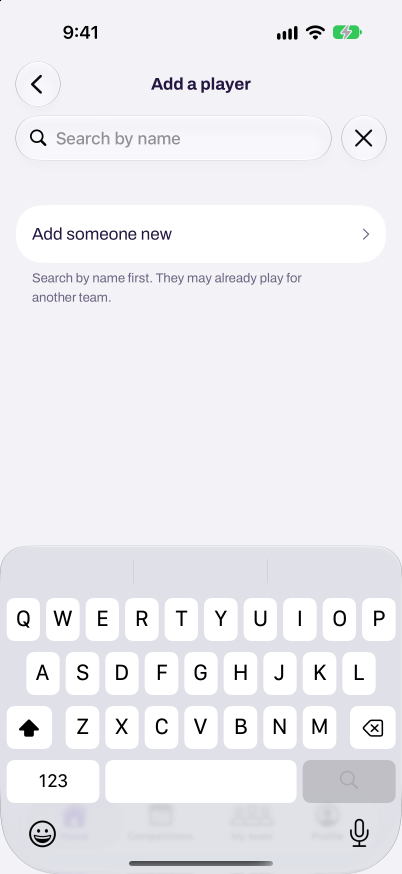
- Tap Add, or Add and invite if you entered an email. The app returns to Choose players.
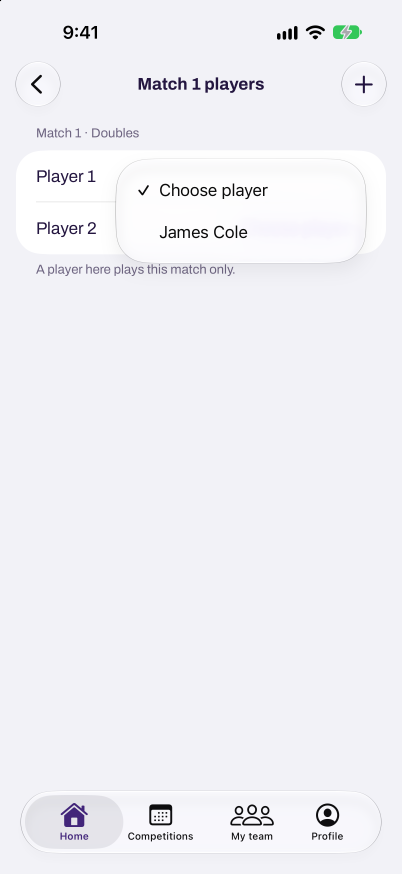
- Choose the player for the playing order or the match you opened.
Some scorecards require a player's Gender. The note below Gender tells you what to choose. Choose a matching gender before you tap Add. An existing player whose gender does not match shows Unavailable. You can add that player from My team.
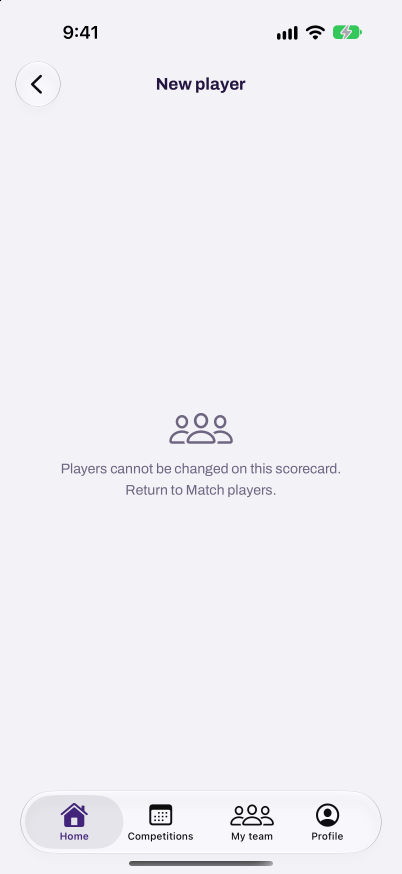
If the scorecard becomes locked, tap the back arrow to return to Choose players. You can still add players from My team.
Save details in the app
- Open Personal details, Notifications, or a player in My team.
- Change the details you need.
- Tap Save at the top on iPhone, or Save changes at the bottom on Android. The changes are saved when the button goes away or turns grey.
Tap Cancel to discard edits you have not saved. These pages need a connection to save. If only some changes save, retry saves the remaining changes.
Scorecard drafts save as you edit. If a draft needs attention, tap Fix to see the problem and the recovery options. Tap Retry to save again. Tap Discard my changes only when you want to remove your unsaved changes and see what is saved.
Both teams can enter scores at the same time. The app adds the other team's changes when it saves yours. If you both changed the same match, tap Discard my changes to see what they saved, then enter your score again.
Signing in again after your session expires keeps scorecard drafts. Sign out removes saved changes from that account on the phone.
Sign in with a passkey
- Open the MatchHub app.
- Tap Sign in with a passkey.
- Use your fingerprint, face or screen lock when your phone asks.
Your password and emailed codes still work.
Add or remove a passkey
- Sign in and open Profile.
- Tap Passkeys.
- Tap Add at the top right on iPhone, or Add passkey at the bottom right on Android.
- Follow your phone's instructions.
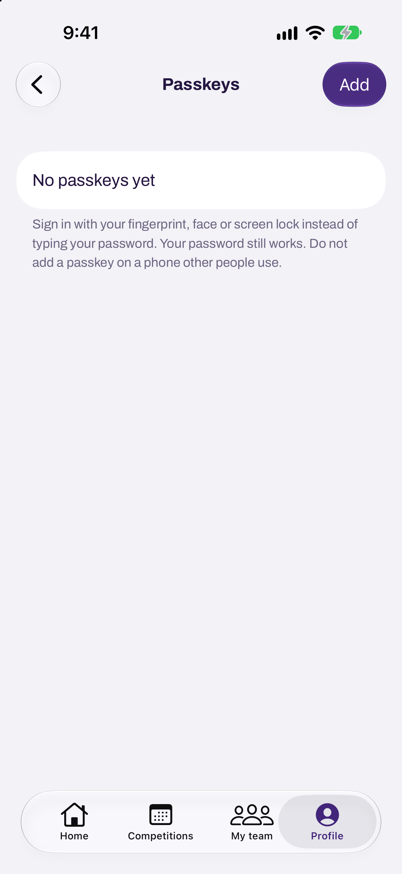
- To remove one, swipe left on the passkey on iPhone or tap its remove button on Android.
- Tap Remove passkey.
Choose your notifications
- Open Profile and tap Notifications.
- If the app asks, tap Turn on notifications.
- For each kind of message, turn Email and App on or off.
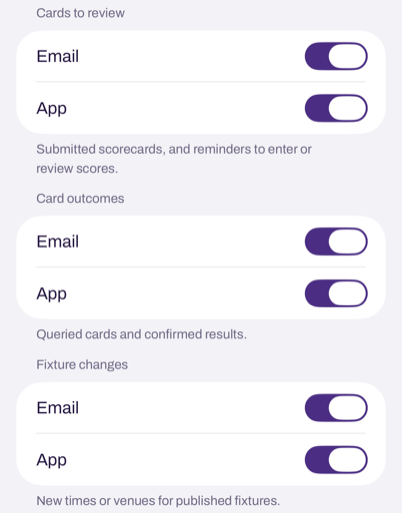
- Tap Save at the top on iPhone, or Save changes at the bottom on Android.
To choose your emails on the website, read Your account and notifications.
Need more help? Email hello@matchhub.nz